Scheduling Procedures
Event schedules run from Monday to Sunday!
Weekly Scheduling (Portal)
Availability and publishing now happen on the Eden Scheduler at schedule.theedenapis.com — not by pasting templates in Discord or a Google Sheet.
Open the scheduler (Discord login required):
Eden SchedulerFull portal walkthroughs live in the Eden Scheduler section of the General Handbook. This page covers the weekly workflow from an Event Staff perspective.
For Hosts and Trials
Weekly host workflow
- Log inEden Scheduler
- Add availabilityQuota + slots
- Optional recurringDefault quota & rules
- After PushCalendar & Discord
- Log in at schedule.theedenapis.com and choose Log in with Discord → Login guide.
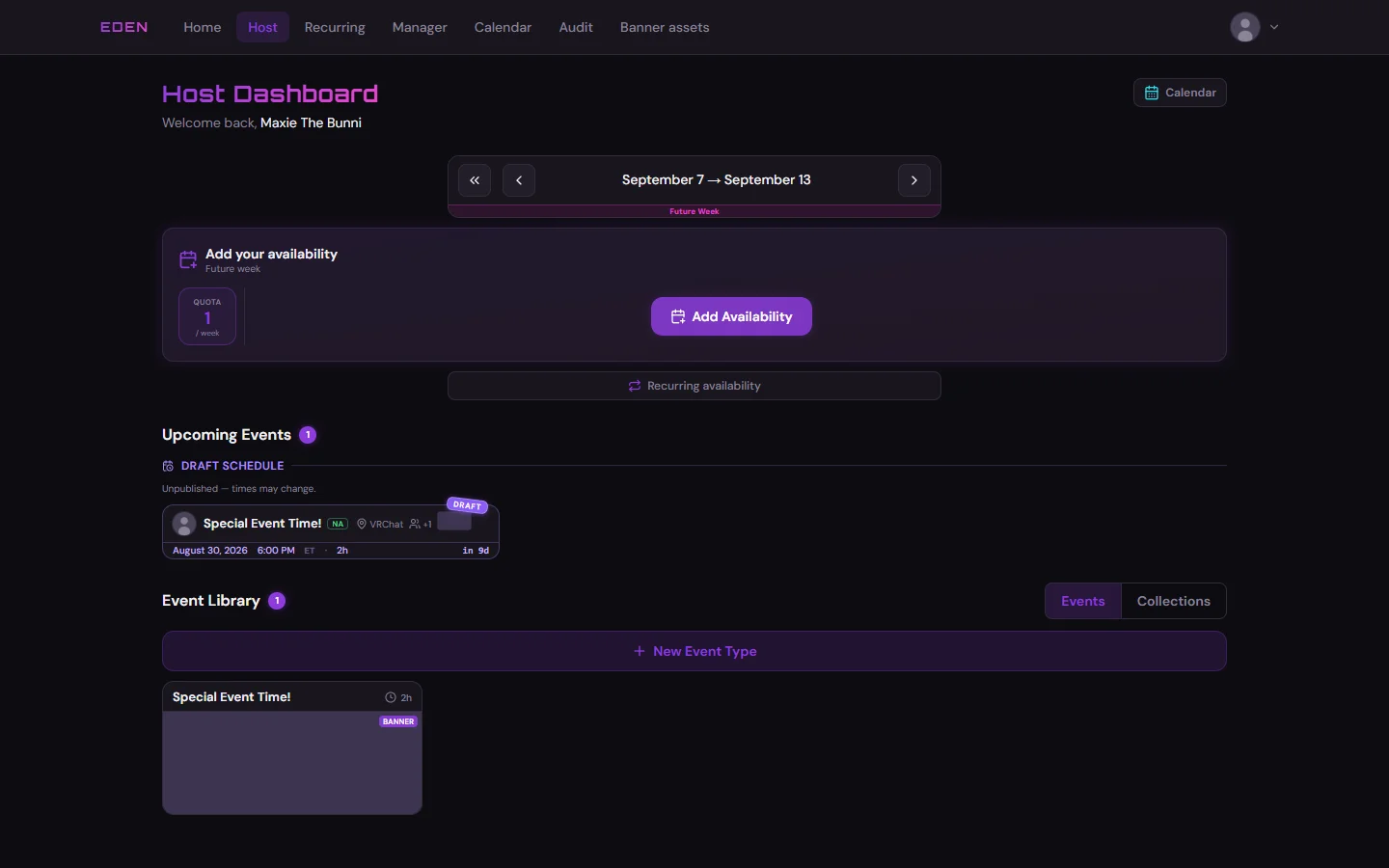
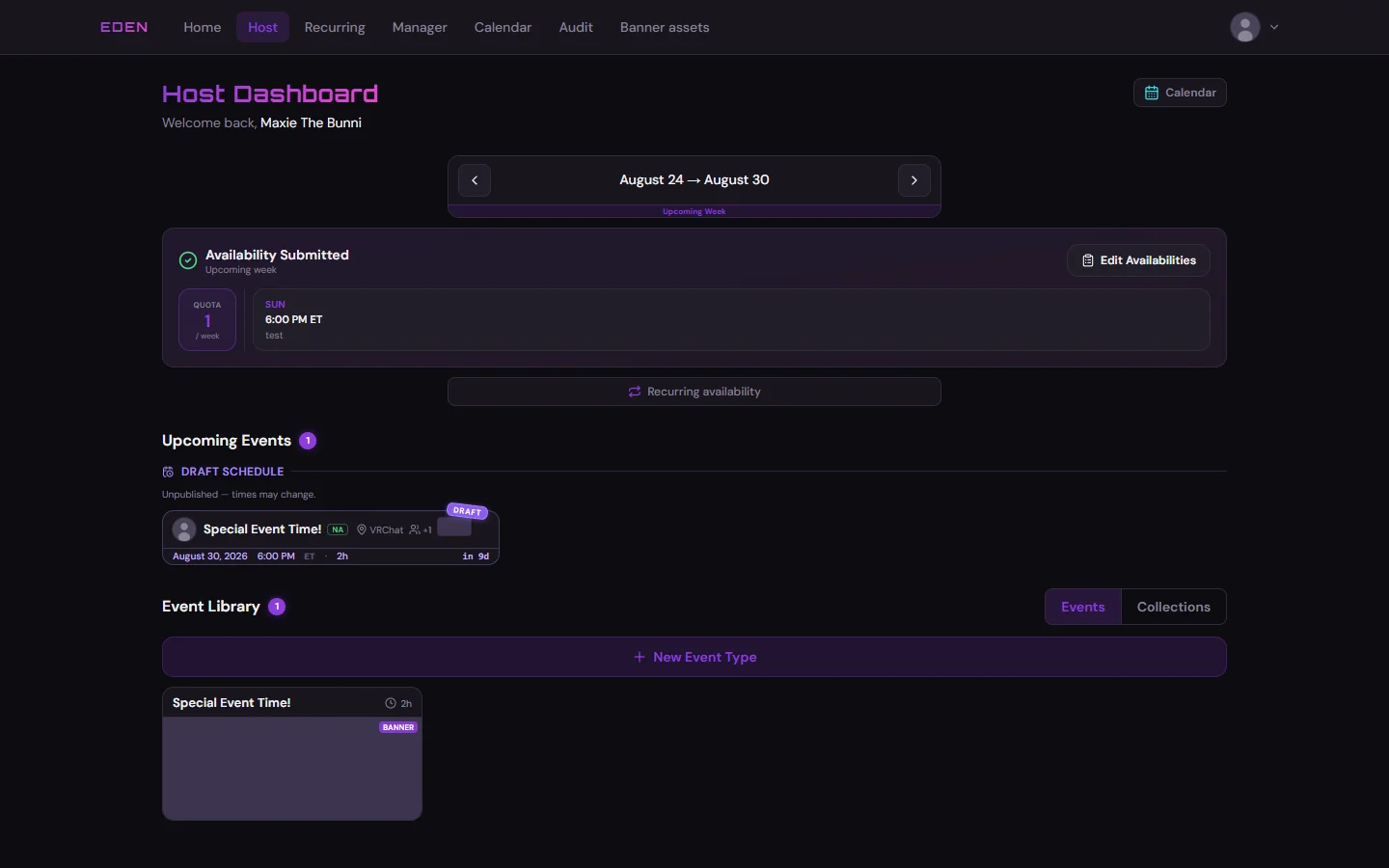
- Click Host in the navigation and check whether the upcoming week still needs availability (Host Dashboard). You may also see a prompt on Home.
Needs availability
Submitted for the week
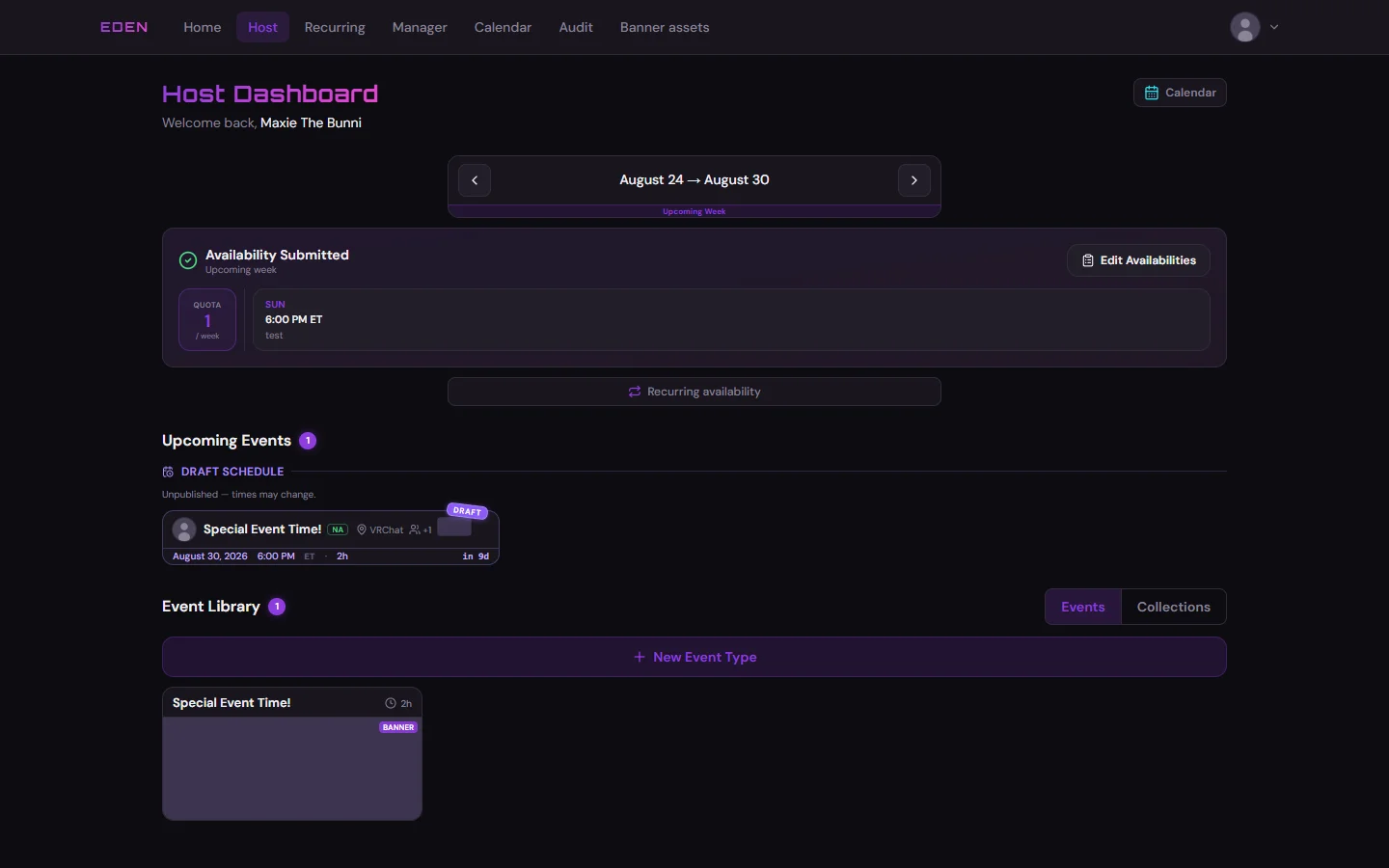
Upcoming events
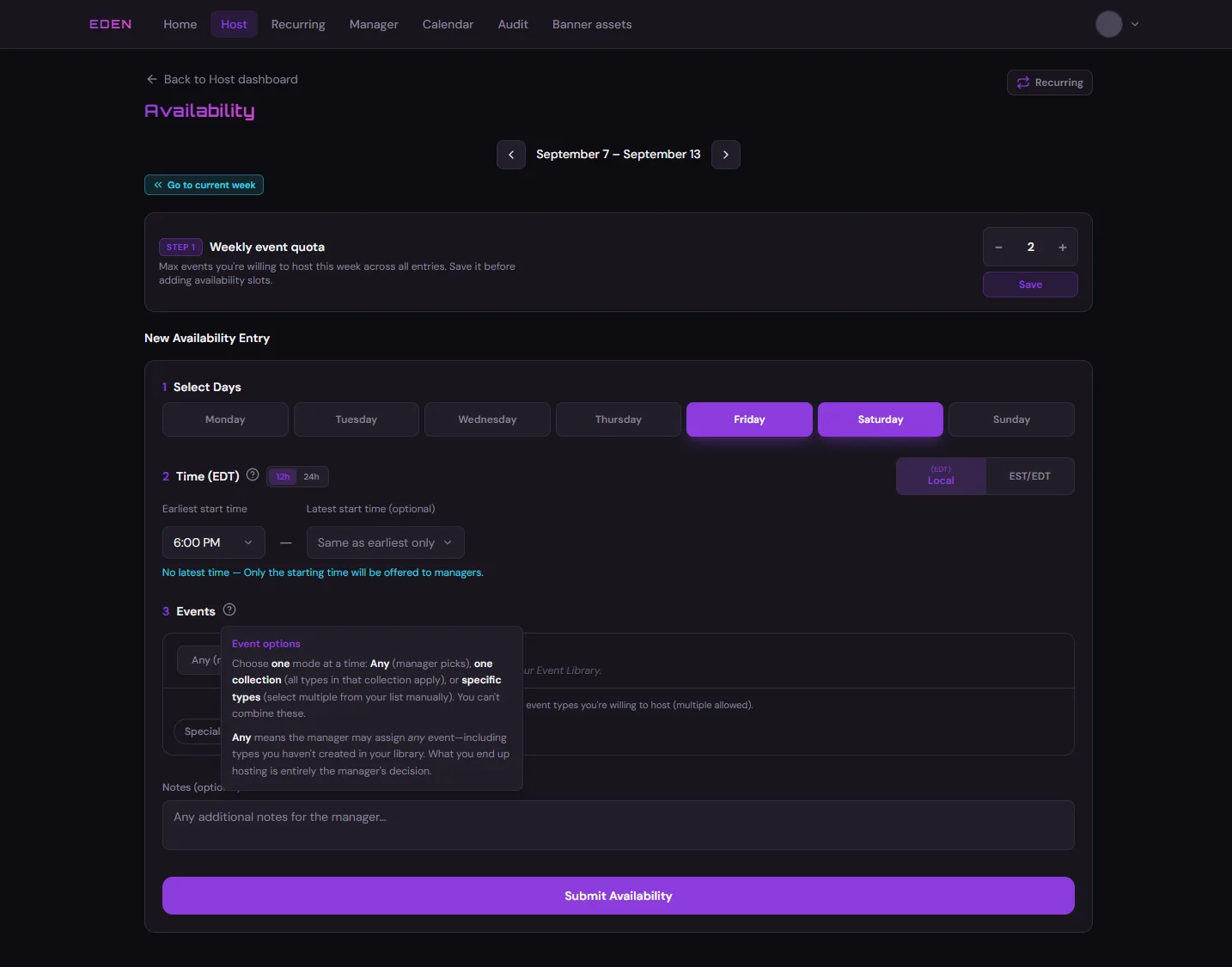
- On the Host page, click Add Availabilities (or Edit Availabilities) on the week card. Set your quota for that week first — max events that week (the old “Max Event Willing to Host this Week”). This is not the same as Weekly quota on the Recurring page (see below).
- On the availability form (Host Availability), add slots: days, start/end, timezone and time format, event mode, optional notes. Submit.
- Optional: click Recurring in the navigation to set Weekly quota (default max events for auto-filled weeks) and repeating availability rules (Recurring Availability). Rules fill when you can host; recurring quota caps how many events per auto-filled week. Recurring fill starts next week (not the current week) and only covers about the next two months by default.
- Optional: on Host, use Event Library to save event types and SFW banners (Banner Studio). You can still upload a plain image instead of using the studio.
- After managers Push the week, check Upcoming Events on the Host page, your personal calendar via the Calendar button on Host (Host Calendar), or the shared view via main nav Calendar (Shared Calendar).
Trials: you still reach out to trainers to get paired unless a trainer contacts you first. If training preference matters, put it in the notes field or coordinate in Discord — there is no separate “?No Training” field on the form.
Lock Rules (Replace Old Discord Deadlines)
Do not wait for a Wednesday/Thursday thread to open. Instead, follow these portal locks (see also Introduction — lock rules):
Portal lock timeline
- Draft weekEditable until Monday Eastern end
- Within 24h of slotNotes only (managers bypass)
- After publishLocks Sunday 00:00 UTC
- Draft week: fully editable until the end of Monday Eastern.
- Within 24 hours of slot start: notes only (managers/admins can bypass).
- After publish: locks after Sunday 00:00 UTC (same 24-hour notes rule).
You can list many slots, but scheduling tries to limit you to the week quota you set for that week. If recurring rules auto-fill other weeks, those use your recurring weekly quota default unless you override them — see Recurring — Weekly quota.
Reading the Published Schedule
After Committee Pushes, the finalized week appears in:
- 📆event-scheduling (staff) — including the 📋CURRENT WEEK'S SCHEDULE thread for quick access and hammertime ready to copy into event posts
- 📆|events-schedule (public)
- Eden Scheduler calendars
Those Discord places are for reading the published output and copying hammertime — not for submitting availability.
For Event Committee
Committee replaces the old Sheet + Saturday draft thread workflow:
Committee publish workflow
- Manager dashboardWho submitted · who's empty
- Host overviewReview live availability
- Schedule builderPlace hosts · co-hosts · types
- PushPublish to Discord
- Audit logEdits · logins · publishes
- Click Manager in the navigation → Manager Dashboard — who submitted, who is empty, who is awaiting.
- In Host Overview, click a host card or row → live availability (what the Sheet used to hold).
- Click Open Schedule Builder for this week on the Manager dashboard → Schedule Builder — place host → availability slot → event type → region; up to two co-hosts.
- Push when ready — see Push conditions and during-publish behavior (handbook does not instruct clicking Push on production as a tutorial).
- Click Audit in the navigation → Audit Log — availability edits, logins, publishes.
The portal also has a read-only Schedule History view (icon top-left on shared Calendar). It is legacy documentation only — not part of the core workflow, may be removed, and is not kept up to date. See Schedule History if you need the screenshot.
@Event Trial may still request training sessions with @Senior Event Team members during the week.

Day of the Event
- The main @Event Host is responsible for pinging the @Event Security role to request security before the event starts.
- @Senior Event Team can host without security (excluding big events).
- @Event Host without available security may request permission to proceed without one.
- @Senior Event Team or @Server Moderator can act as security if needed.



Communication is key! Ensure you're proactive in coordinating with security and other staff members.
Security Request Procedure
Follow this flowchart to determine when and how to request security based on your event type:
ℹScheduled Classic Events*
START: Request security when Event Announcement is posted
IF NO SECURITY 1hr prior: Request support
IF NO SUPPORT: Only @Senior Event Team can solo host*
*Solo hosting requires @Senior Event Team status
⚠Scheduled Special Events
START: Request security 24-48hrs prior to Event
IF NO SECURITY DAY OF: Request support
IF NO SUPPORT: CANCEL - Ineligible for solo host
Special events require security or support
ℹUnscheduled Popup Events
START: Request security before Event is requested in chat
IF NO SECURITY 1hr prior: Request support
IF NO SUPPORT: Only @Senior Event Team can solo host
Popup events need advance security confirmation
Example: Requesting Security for Your Event


If no security responds 1 hour prior, follow the escalation path below.
Request Escalation Path
No security? Escalate in order
- Event SecurityFirst request
- Moderator or SeniorIf no security
- Proceed or soloPer event type rules
- Cancel if requiredSpecial events need security
- All @Event Host / @Senior Event Team → Request from @Event Security
- If no Security → Request from @Server Moderator or @Senior Event Team
- @Server Moderator support → Proceed with event
- @Senior Event Team support → @Senior Event Team can solo host*
- If no support available → Follow event type rules above
@Senior Event Team can solo host Classic and Popup events when no security or support is available. Special events always require security or must be cancelled.
Related
Deprecated: Discord paste templates (historical reference only)
Before the Eden Scheduler, hosts pasted EST-only templates in #event-scheduling. That workflow is retired — use the portal instead. Old template syntax (8pm + Classic Event, Max Event Willing to Host this Week, etc.) maps to quota, slots, and event modes on Host Availability.