Recurring Availability
Define rules that auto-fill upcoming weeks so you do not re-enter the same days and times every week.
How to get here: Click Recurring in the main navigation. On the Host dashboard, you can also click Recurring availability below the week card.
- Starts next week only — new or updated rules (including Save & fill) never apply to the current week. Still need slots this week? Submit them on Host Availability.
- About two months ahead — by default, auto-fill only schedules the next ~2 months of weeks. The window rolls forward over time; this horizon may change in a future update.
The Recurring page has two separate sections — do not mix them up:
🔢Weekly quota
Default max events per week for weeks your rules auto-fill. Use Overrides when one week needs a different cap. Separate from quota on the weekly availability form.
🔁Availability rules
Repeating days, times, and event mode on a schedule you define. Rules create slots; they do not set quota. Higher rules in the list win when two rules overlap.
Rules create when you can host. Quota caps how many events scheduling should try to assign you that week. They work together — a rule never replaces quota.
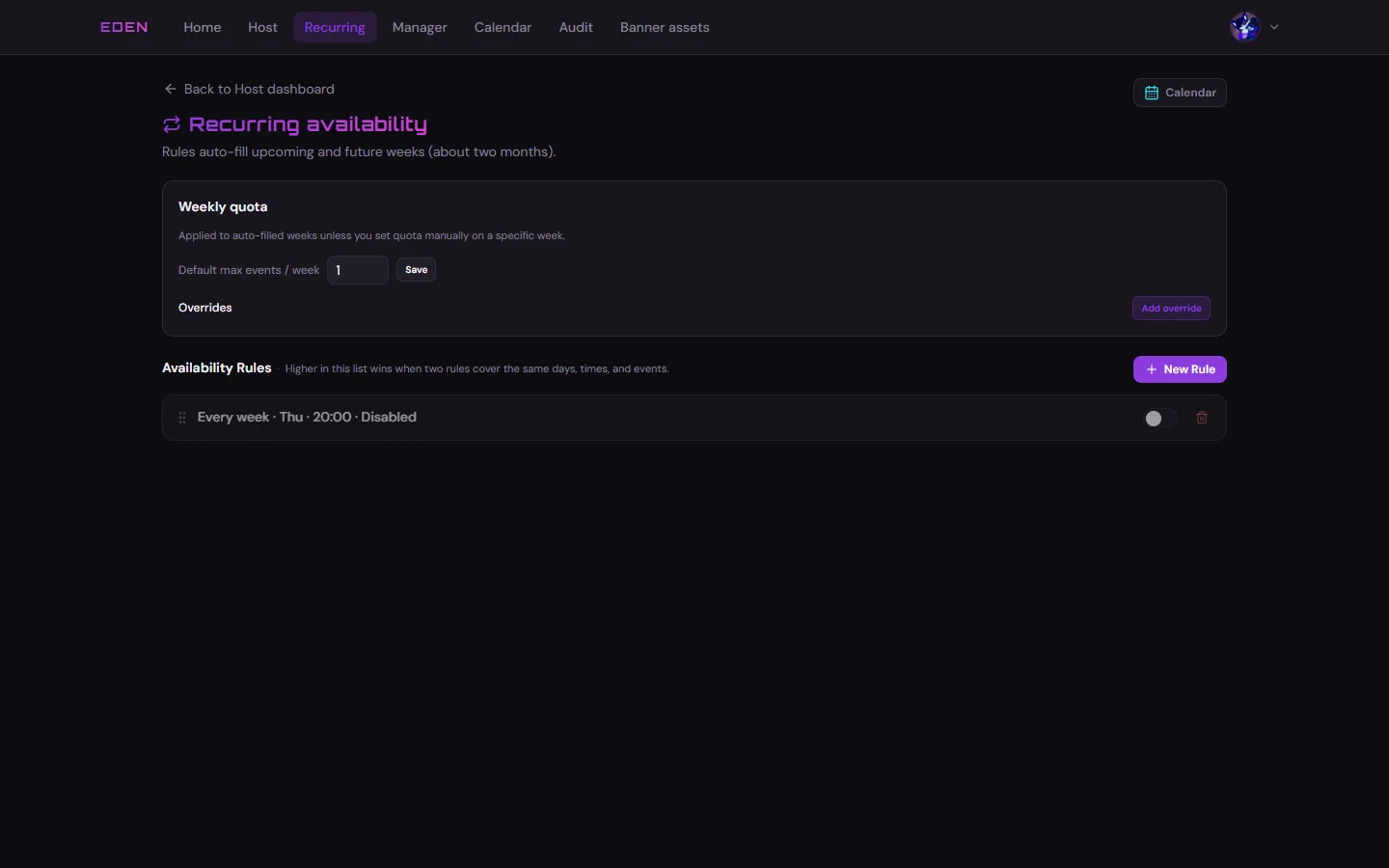
Weekly Quota
At the top of Recurring, Weekly quota sets your default max events per week for weeks that get auto-filled by your rules.
- Default max events / week — click Save after you change it. This is the cap applied when a recurring rule fills a future week for you.
- Overrides — click Add override when one specific week needs a different cap (for example, a vacation week at
0, or a busy week at3) without changing your global default.
When you open Add Availabilities on a single week (Host Availability), the quota field on that form is for that week only.
| Where you set it | What it affects |
|---|---|
| Recurring → Weekly quota → Default | Every auto-filled week, unless something below overrides it |
| Recurring → Weekly quota → Overrides | One specific week’s cap from the Recurring page |
| Host Availability form → quota | That one week only — wins over the recurring default for that week |
If you submit or edit quota on the weekly form, that number is what managers see for that week. The recurring default still applies to other weeks your rules fill automatically.
If you do not use recurring rules, ignore the Recurring quota section — only the per-week form quota matters.
Availability Rules
Each rule describes days, times, and event mode that repeat on a schedule you define. Rules do not include quota — set quota in Weekly quota above (or on the weekly form when you need an exception).
Recurring rules are applied top to bottom. If two rules cover the same days, times, and events, the higher rule wins; lower rules are overridden.
Change order by dragging:
- On desktop, click and drag a rule to the new position.
- On mobile, tap and hold a rule to see the drag handle, then drag to the new position.
Create a Rule
New rule
- New RuleOpens the dialog
- Repeat patternWeekly · days · frequency
- Times + modeSame as weekly form
- SaveSave & fill or save for later
The preview calendars show how the rule lands on upcoming weeks before you save. On mobile, tap Preview at the bottom of the dialog.
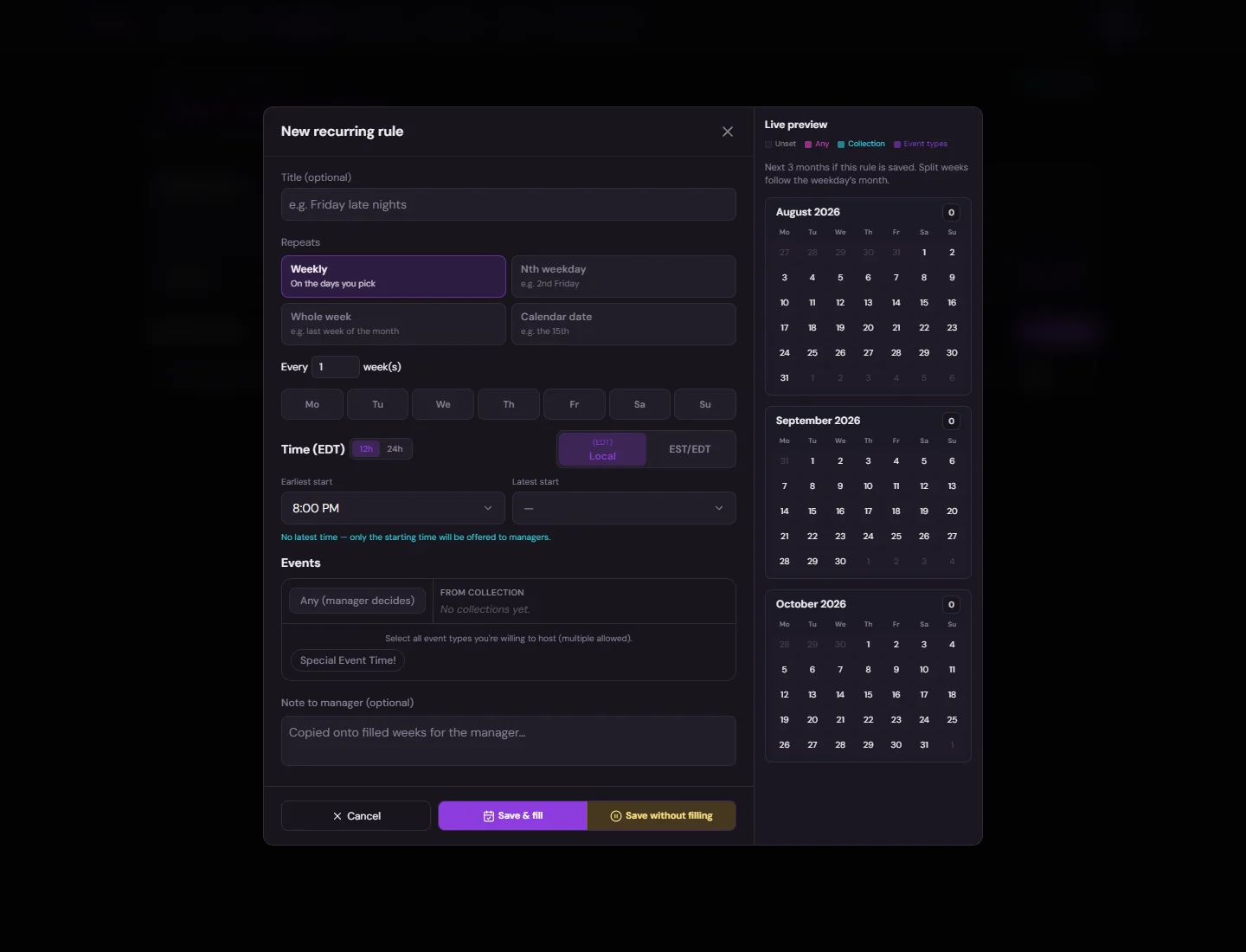
When you save, you can Save & fill (apply the rule to upcoming weeks now) or Save without filling (keep the rule for later). Either way, filled weeks begin next week — not the week you are in — and only within the default ~2-month forward window.
Disabling a Rule
Click Disable on a rule. You will be asked whether to remove slots that rule already created, or keep them.
Re-enabling a Rule
Click Enable on a disabled rule.
Deleting a Rule
Deleting asks whether to remove associated slots. You cannot keep slots from a rule you delete.
Recurring rules pre-fill availability, but the same weekly lock rules apply when you edit or delete slots later.
Next: Host Calendar