Banner Studio
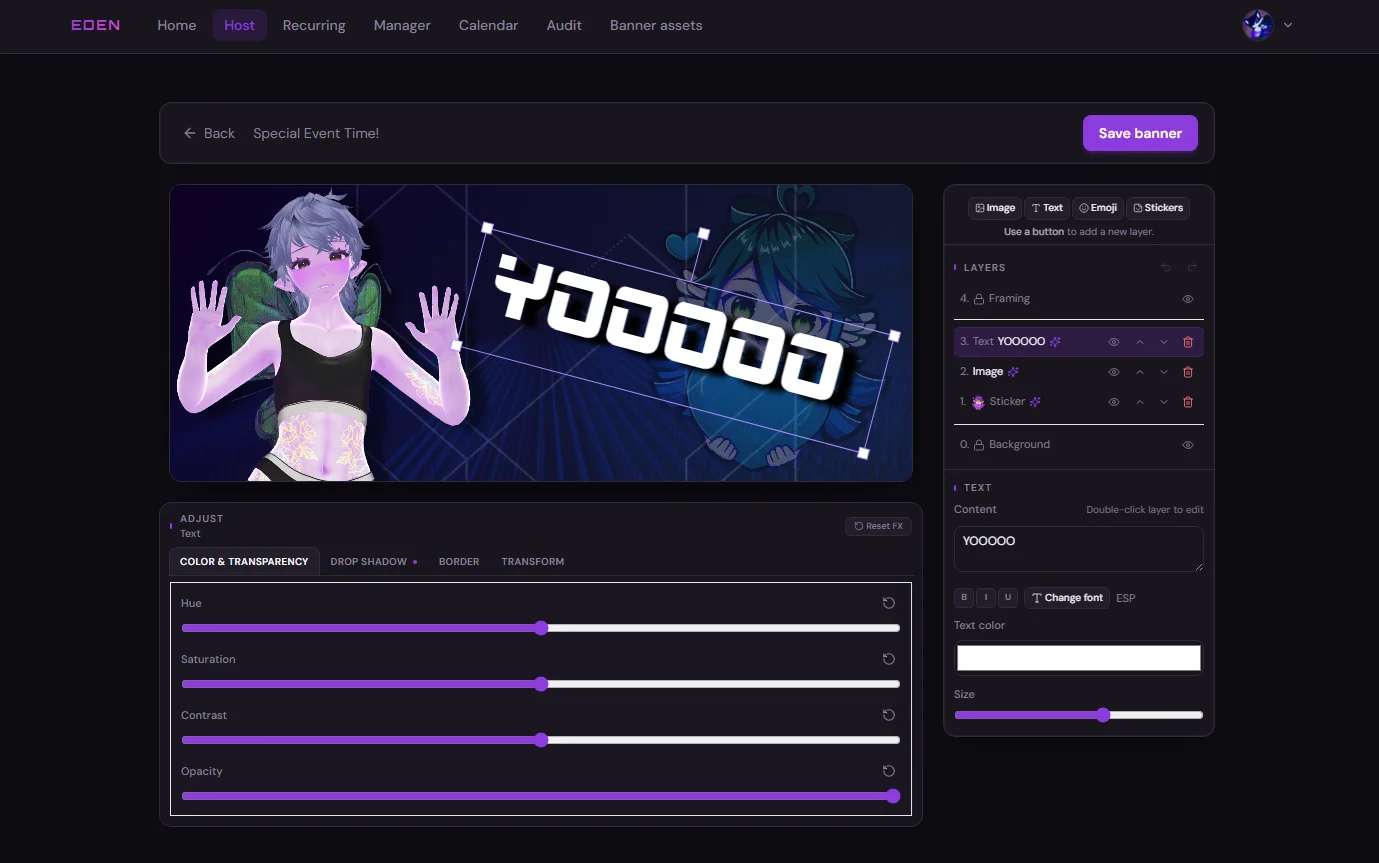
Optional editor for SFW event type images. Banners show in your Event Library, on the calendar after Committee Push, and on Discord scheduled events. You can still upload a plain image instead (JPEG, PNG, WebP, or GIF, up to 5 MB). Canvas is 800×320.
How to get here: Host → Event Library → New or edit an event type → Design in Banner Studio.
Design a Banner
Design a banner
- Event LibraryHost dashboard
- Banner StudioLayers · text · FX
- Save bannerWrites to the event type
From the Event Type modal you can also replace, download, or remove the image. Back returns you to the Host Dashboard.
Uploading a plain file over a studio banner deletes the Banner Studio project. You keep the new flat image, but you cannot re-open the old layers.
What You Can Edit
- Image / Text / Emoji / Stickers — add layers from the toolbar
- Background and framing — presets, your uploads, or none
- Layers — reorder, hide, or delete (background and framing stay locked)
- Text — content, font, bold/italic/underline, color, size
- FX — color & transparency, drop shadow, border, transform
Save banner when you are done — it does not auto-save.
After save, set duration, description (SFW — used on Discord events), and collections from the Event Type modal. Use those types on Host Availability with Specific or Any from.