Host Dashboard
The Host Dashboard is the main place hosts and trials check their week — quota, submitted slots, and assigned events.
How to get here: Click Host in the main navigation (top bar on desktop, bottom bar on phone). The EDEN logo also returns you to Host.
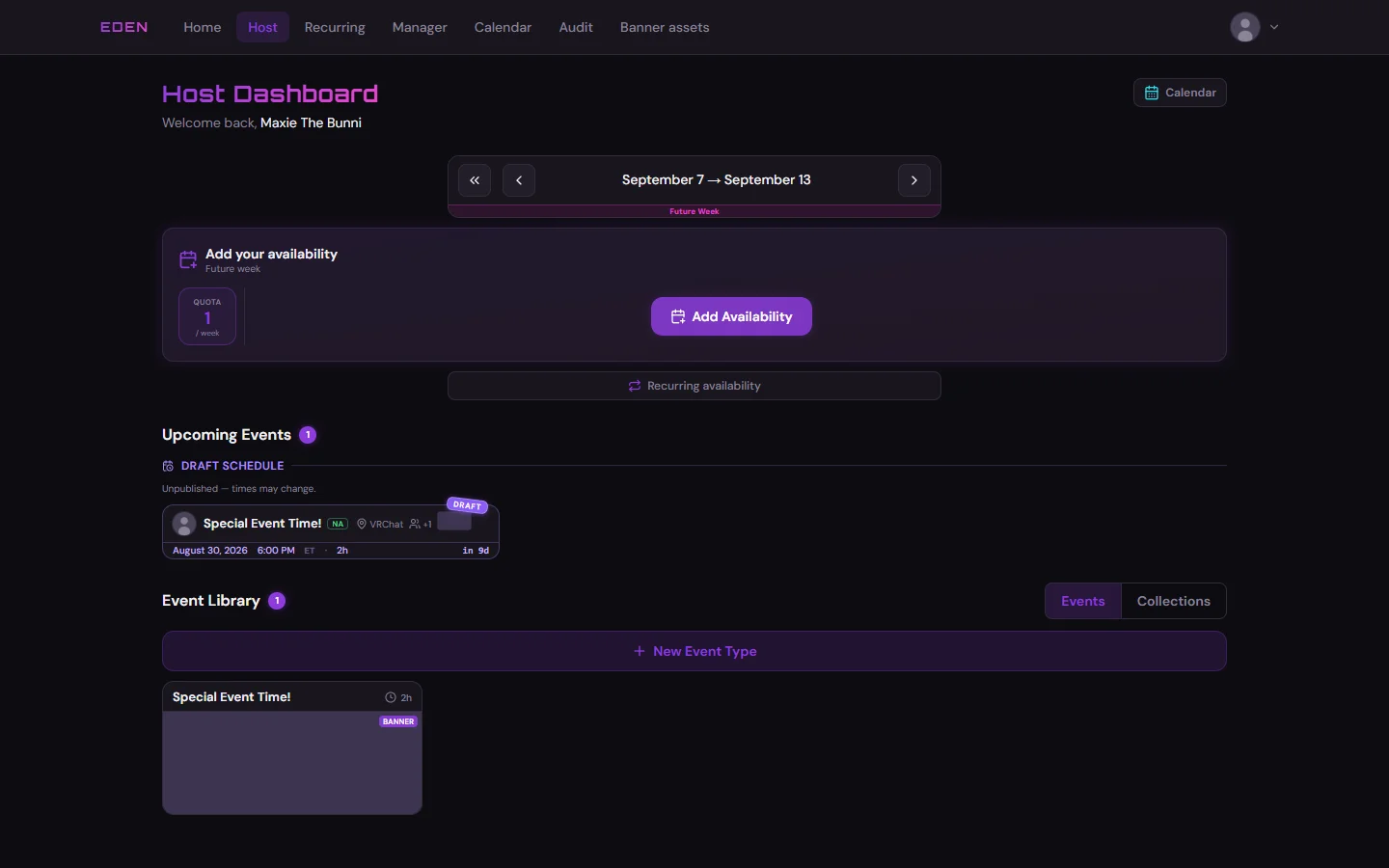
Empty Week — Add Availability
If you have not submitted for the selected week, the dashboard shows an empty state. Click Add Availabilities on the availability card to open the form.
Submitted for the Week
After you submit, the dashboard shows your quota and saved availability slots.
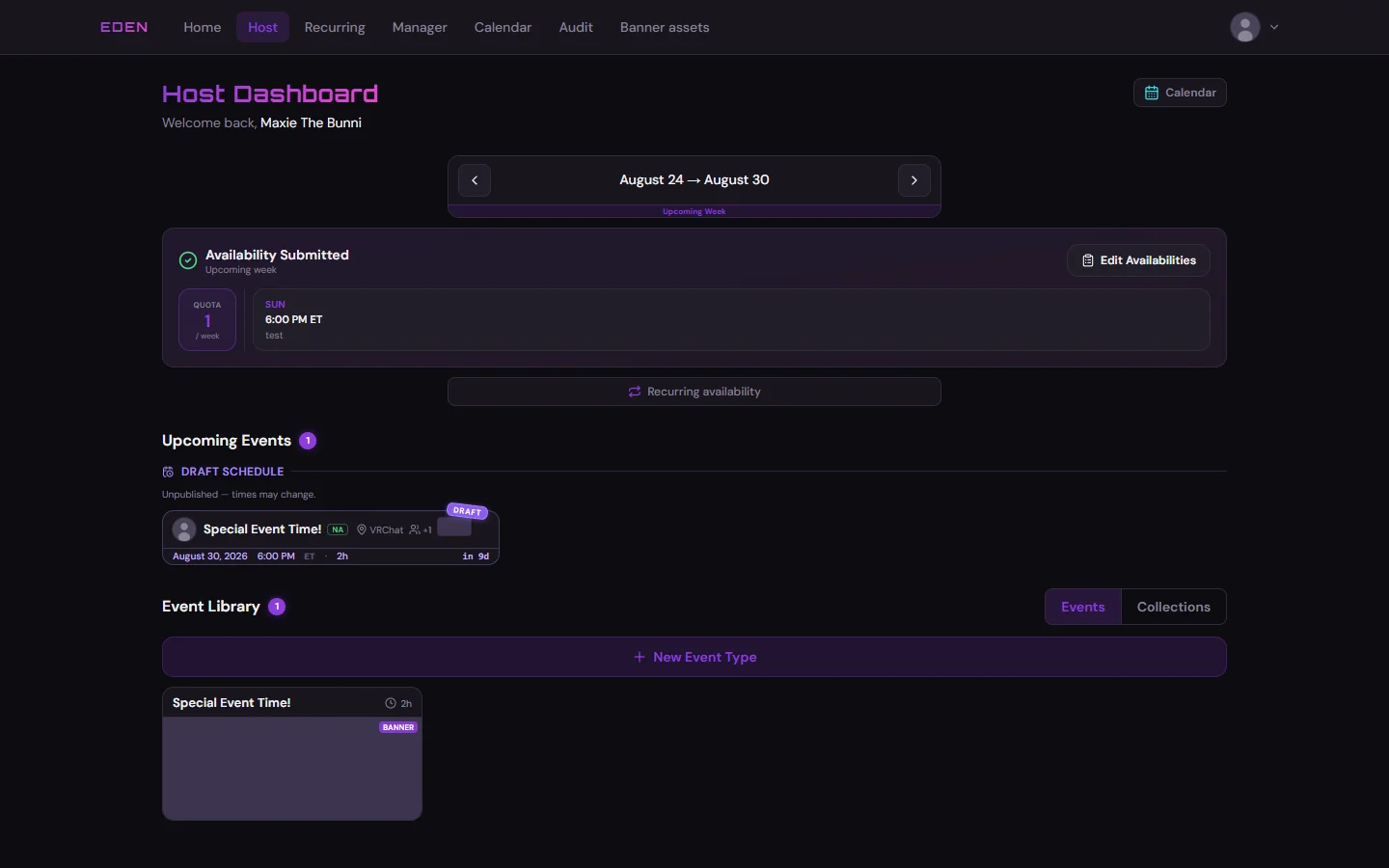
Week quota (on this form or on the Host dashboard for one week) is how many events you want that week. Recurring weekly quota (top of the Recurring page) is the default cap for weeks your rules auto-fill. Per-week edits win for that week — see Recurring Availability.
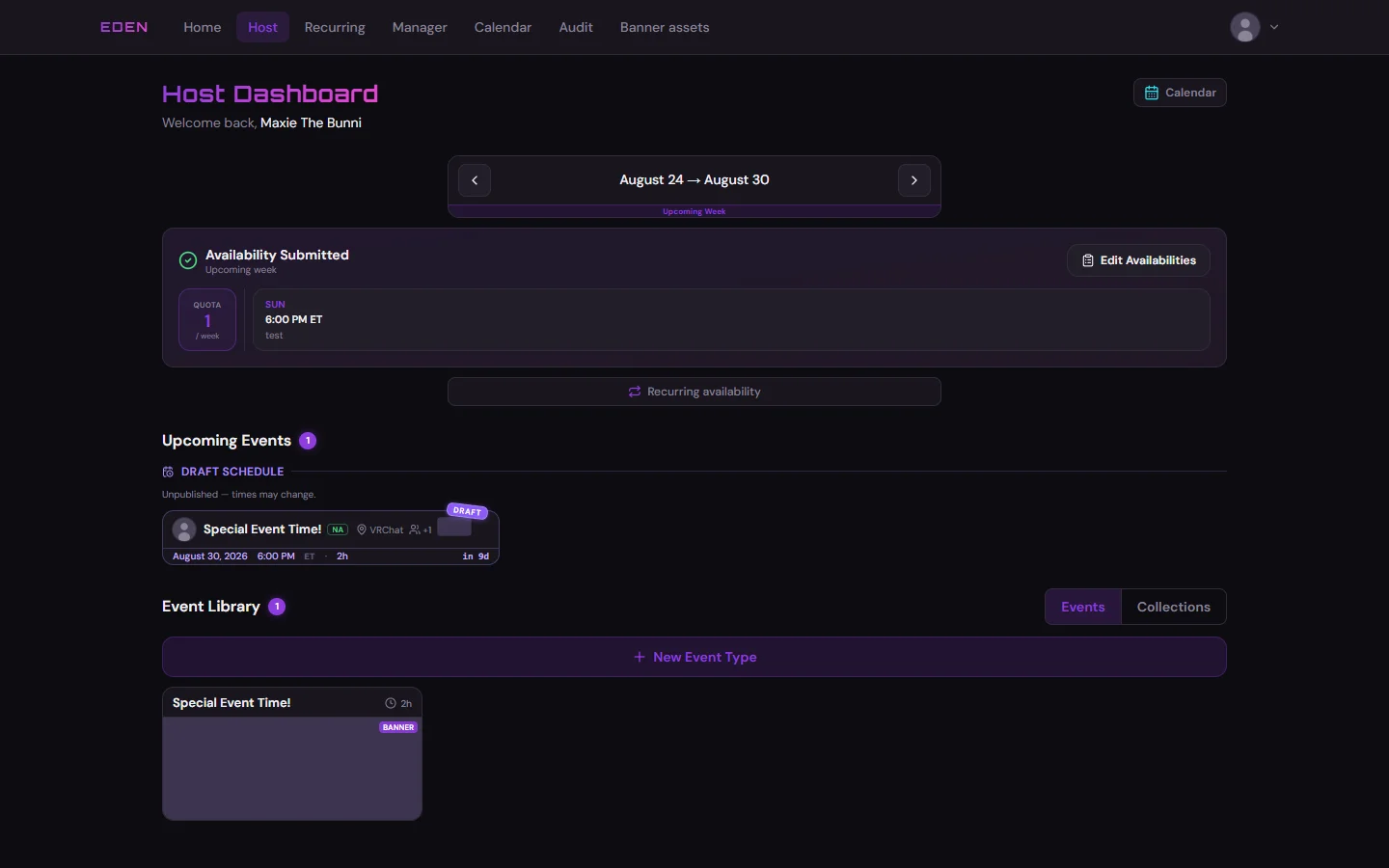
Upcoming Events
Once managers assign you on the builder, Upcoming Events lists what you are scheduled to host.
Event Library
Scroll down the Host page for Event Library — saved event types and collections you reuse on the availability form. Open an event type to upload a SFW image or design one in Banner Studio.
Next Steps
- Edit availability: click Add Availability, Add Availabilities, or Edit Availabilities on the week card → Host Availability
- Set repeating weeks: click Recurring in the navigation, or Recurring availability on this page → Recurring Availability
- Personal calendar: click the Calendar button at the top of this page (not the main nav Calendar link) → Host Calendar
- Event type banners: Event Library on this page → Banner Studio