Eden Scheduler
The Eden Scheduler is our web portal for weekly event availability and publishing. It replaced the old Discord paste-templates in 📆event-scheduling and the unofficial Google Sheet the Event Committee used behind the scenes.
Log in with Discord (Event Host, Trial, Senior, or Committee access required):
Open Eden Scheduler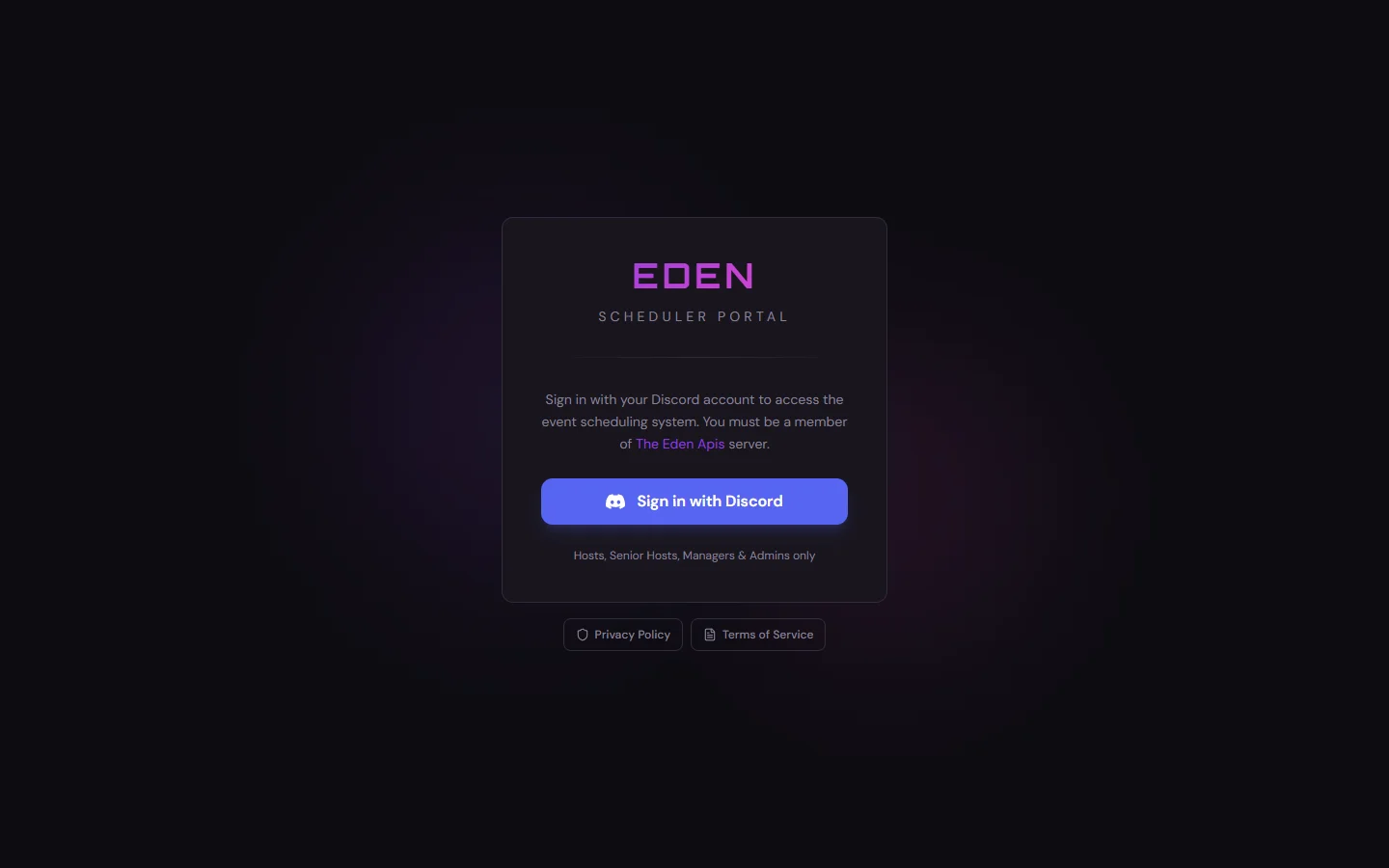
What Changed (and What Did Not)
📅Now on the portal
- Submit and edit availability (days, times, quota, event mode)
- Recurring availability rules
- Host dashboard, calendars, assigned events, and Banner Studio for event type images
- Committee dashboard, schedule builder, audit log, and Push to publish
💬Still on Discord
- Day-of hosting, security requests, and escalation
- Special-event planning threads
- Trial trainer outreach (“reach out to trainers unless they do first”)
- Reading the published schedule in 📆event-scheduling (staff — including the 📋CURRENT WEEK'S SCHEDULE thread for a quick look at the week and copy-ready hammertime) and 📆|events-schedule (public)
Weeks still run Monday → Sunday. Event Committee still builds the grid and publishes it — they just do that in the portal instead of a Sheet.
Weekly Lock Rules
These replace the old “thread opens Wednesday / paste by Friday / draft Saturday / final Sunday” Discord workflow:
- Draft week: fully editable until the end of Monday Eastern.
- Within 24 hours of a slot start: hosts can edit notes only (unless a manager/admin bypasses the lock).
- After publish: availability locks after Sunday 00:00 UTC (same 24-hour notes-only rule still applies).
- Managers and admins can bypass host week-lock in the availability UI when needed.
Saturday “rough draft in the thread” is now an unpublished draft on the builder / shared calendar. Sunday “final paste” is Push — which posts to Discord, Discord Scheduled Events, and our published schedule channels.
Key Vocabulary
| Term | Meaning |
|---|---|
| Availability / slot | A day + time range you are willing to host (or be trained) |
| Week quota | Max events for one week on the Host Availability form — the old “Max Event Willing to Host this Week” |
| Recurring rule | Repeating days/times on Recurring; auto-fill starts next week, ~2 months ahead by default (may change) |
| Recurring weekly quota | Default max events per week on Recurring — applied when rules auto-fill future weeks; overrides and per-week form edits can differ |
| Event mode | Specific (you name the type), Any (Committee picks), or Any from (you pick a collection) |
| Local vs EST/EDT | Each availability slot can use your local timezone or Eastern — EST-only paste syntax is retired |
| Draft vs Published | Unpublished weeks on the builder; Push publishes the final week |
| Audit log | Managers see availability edits without needing a Discord ping |
If you still need to note training preference, use the notes field on your availability or coordinate in Discord — there is no separate “No Training” toggle on the form.
Finding Pages in the Portal
After login, use the main navigation — top bar on desktop, bottom bar on phone:
| Click | Who sees it | What it opens |
|---|---|---|
| Home | Everyone | Landing summary and upcoming-week prompts |
| Host | Hosts and trials | Host dashboard, availability buttons, upcoming events |
| Recurring | Hosts and trials | Recurring quota + rules (auto-fill from next week, ~2 months ahead) |
| Manager | Committee / managers | Host overview and link to Schedule Builder |
| Calendar | Everyone | Shared calendar (day / week / month) |
| Audit | Committee / managers | Audit log |
Also on screen (not in the main nav bar):
- Add Availabilities / Edit Availabilities — on Home and Host week cards → availability form
- Calendar button on the Host page → your personal host calendar (Events vs Availability tabs)
- Event Library on the Host page → saved event types and Banner Studio
- Open Schedule Builder for this week — on the Manager dashboard
- Schedule History icon — top-left of the shared Calendar page (legacy; see Schedule History — posterity only, may be removed)
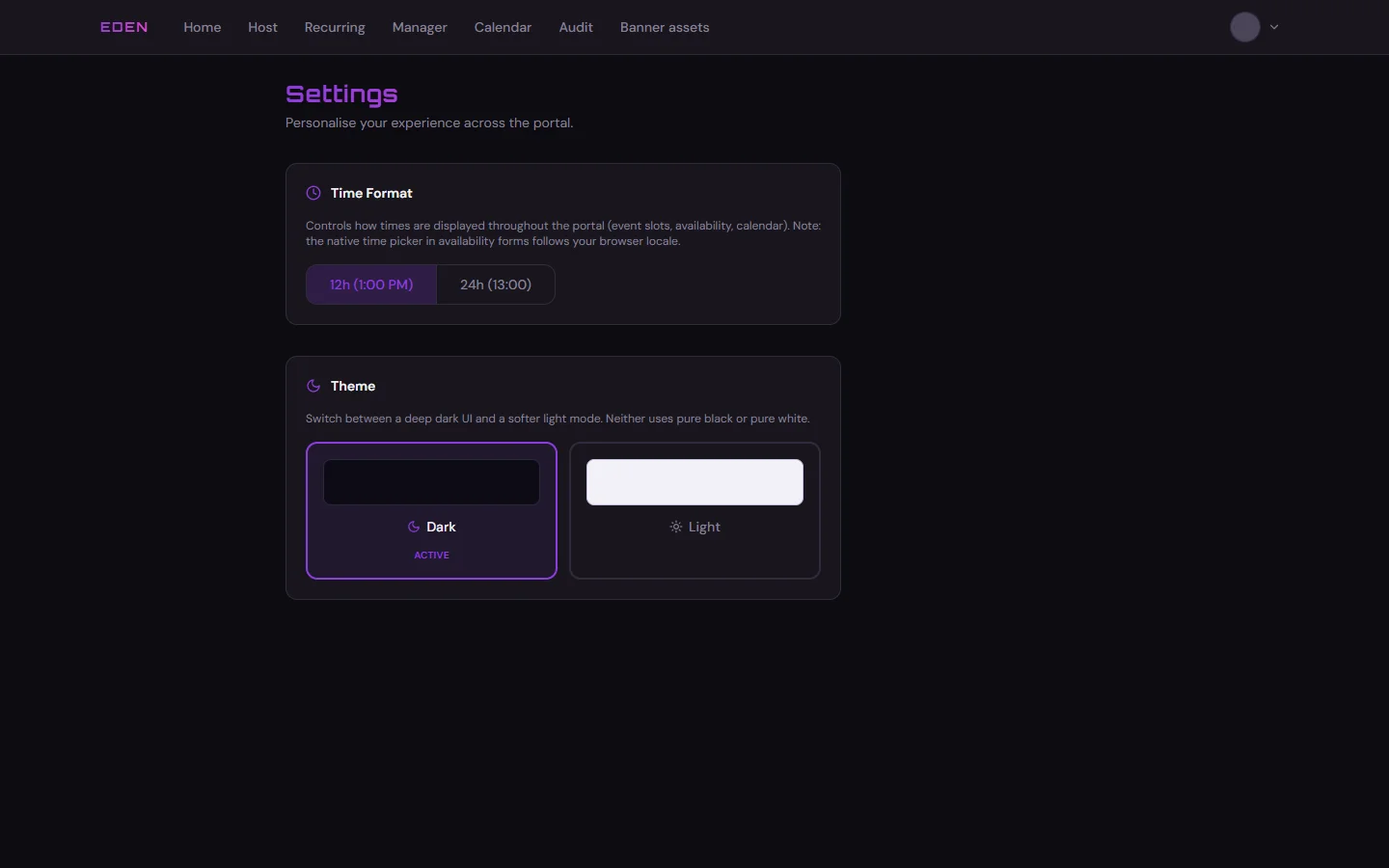
- Settings — click your avatar (top-right) → Settings
Settings
Click your avatar in the top-right corner, then choose Settings from the menu. There you can switch light/dark theme and 12-hour vs 24-hour time display. This applies across the portal.
Who Should Read What
Hosts and Trials
- LoginDiscord → Home
- HostWeek card + availability
- RecurringOptional auto-fill rules
- Host CalendarYour events + slots
- Banner StudioEvent type images
Full weekly workflow from an Event Staff angle: Scheduling Procedures. Pages: Host Dashboard, Host Availability, Banner Studio.
Event Committee / managers
- ManagerWho submitted · filling bars
- Schedule BuilderPlace events on the grid
- PushPublish to Discord + listings
- AuditEdits + publish trail
Pages: Manager Dashboard, Schedule Builder, Audit Log. Optional legacy: Schedule History (posterity — not maintained).