Manager Dashboard
The Manager Dashboard is for @Event Committee and other manager roles. It replaces the old Google Sheet view of who submitted availability and how far along scheduling is for the week.

How to get here: Click Manager in the main navigation (top bar on desktop, bottom bar on phone). Only manager and admin roles see this link.
Use the week selector (◀ Week of … ▶ and the calendar icon) to move between weeks before you read host status or open the builder.
At the Top of the Page
| Element | What it tells you |
|---|---|
| Week of … | Which Monday–Sunday week you are viewing. Use the arrows or calendar icon to change weeks. |
| Open Schedule Builder for this week | Opens the Schedule Builder for this same week — where you place hosts on the grid. |
| Summary row (four stat cards) | High-level counts for the selected week (see below). |
Summary Row
Four cards sit under the builder button:
| Stat | Meaning |
|---|---|
| Total Scheduled | How many events are on the schedule for this week (assignments on the builder). |
| Submitted | How many hosts submitted availability — shown as submitted / total (e.g. 11 / 47). |
| Hosts Scheduled | How many distinct hosts already have at least one event assigned this week. |
| Unscheduled | Events or placements still needing attention (often 0 when the week is fully matched). |
Host Overview
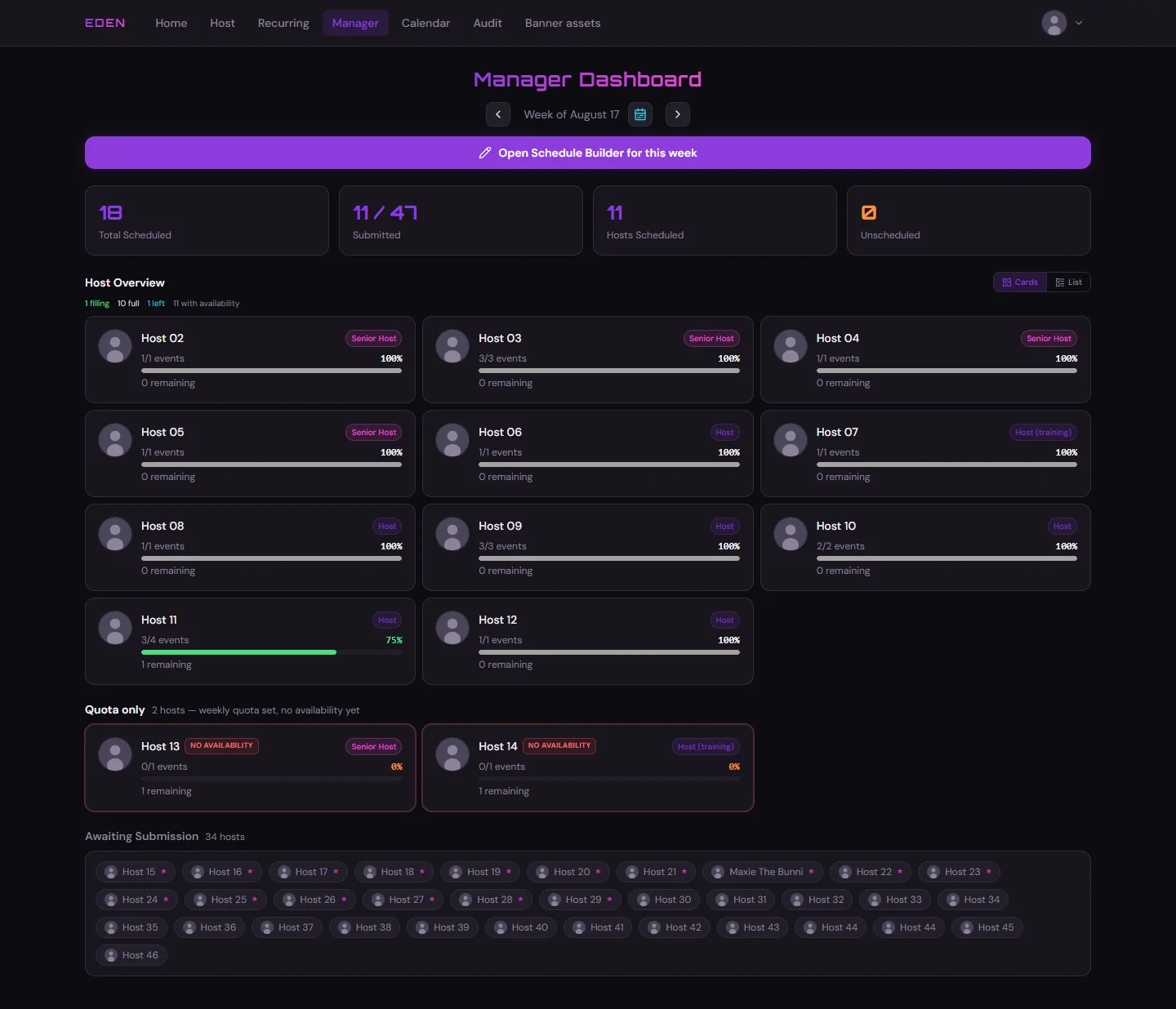
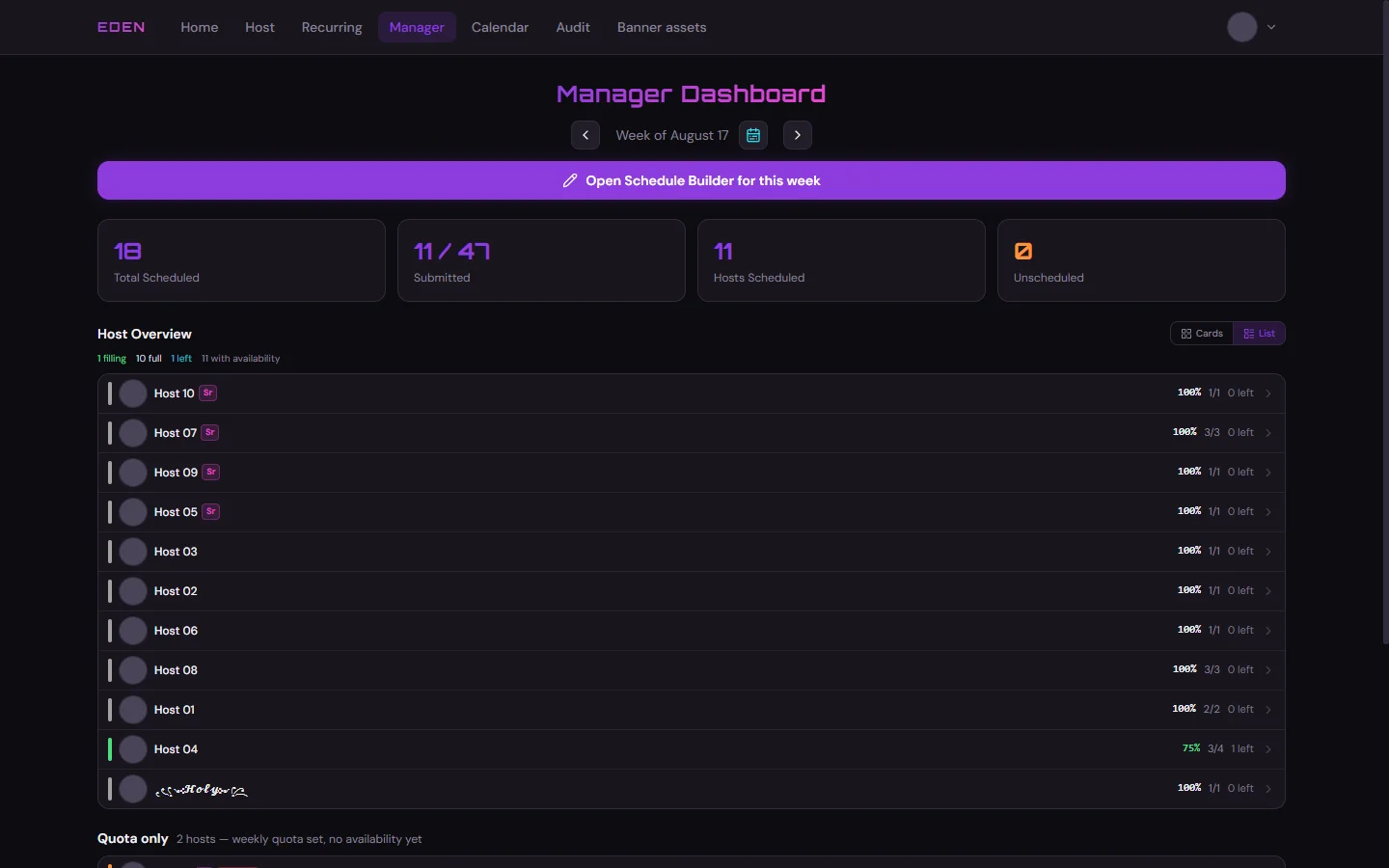
Host Overview is the main panel. Toggle Cards or List in the top-right of this section — same data, different layout.
Above the grid, a short status line summarizes the week at a glance, for example:
- filling — at least one host is partially scheduled (green progress)
- full — hosts who already hit their week quota on the schedule
- left — total event slots still to assign across those hosts (cyan)
- with availability — how many hosts submitted slots you can schedule from
🗂️Cards
Best when you want avatars, role badges, and progress bars at a glance. Click a card to open host detail.
📋List
Compact rows with the same numbers — useful when many hosts submitted. Click a row to open host detail.
The Filling Bar (Progress)
Each host in Host Overview shows how close they are to their week quota on the schedule — not how much availability they offered.
Read a host card or list row like this:
| What you see | Meaning |
|---|---|
X/Y events | X = events already assigned this week · Y = that host’s week quota |
| Percentage | How full the bar is (X ÷ Y). Matches the visual bar. |
| Progress bar | Green = still room under quota (filling). White / gray at 100% = quota reached (full). |
N remaining or N left | How many more events you can still assign before that host hits quota. 0 remaining = they are full for the week. |
Quota is the max events the host wants that week. Availability slots are the days/times they offered. A host can have many slots but quota 1, or quota 4 with only two slots — the filling bar tracks scheduled events vs quota, not slot count.
What Else Appears on a Host Card / Row
| Element | Meaning |
|---|---|
| Avatar + name | The host (screenshots use anonymized Host 01, Host 02, …). |
| Role badge | e.g. Senior Host, Host, Host (training) — same role labels as elsewhere in the portal. |
Sr tag (list view) | Shorthand for Senior Host on narrow rows. |
Chevron › (list view) | Row is clickable — opens host detail. |
Quota Only
Hosts listed under Quota only set a week quota but have no availability slots yet.
- Cards use a red border and a NO AVAILABILITY badge.
- Follow up in Discord or wait for them to submit on Host Availability.
Awaiting Submission
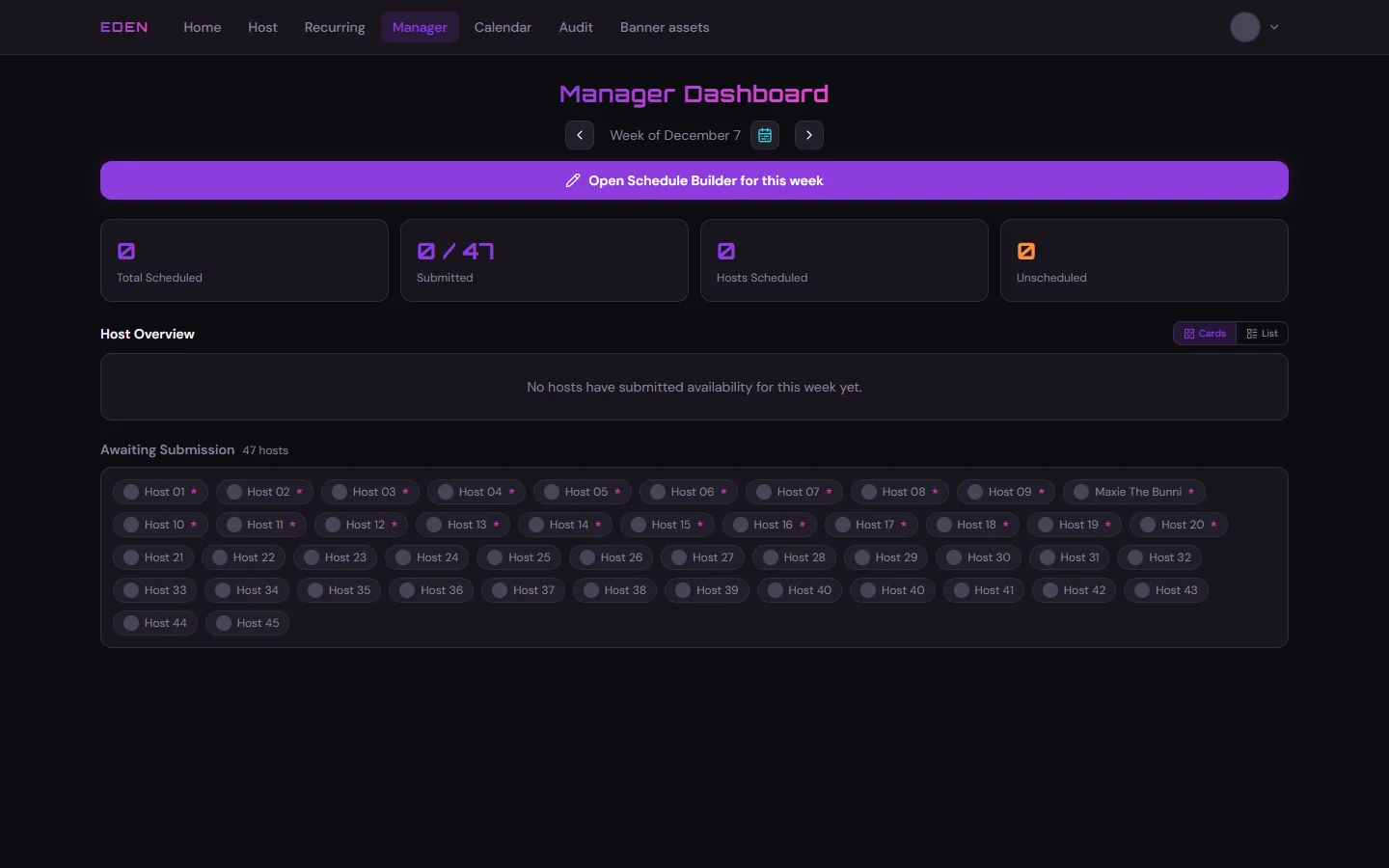
Awaiting Submission lists hosts who have not submitted for this week at all.
- Shown as small gray pills (avatar + name).
- The header shows the total count (e.g. 34 hosts).
- Once someone submits, they move into Host Overview (or Quota only if they only set quota with no slots).
Host Detail
Click any card or list row to open that host’s live detail — the same information the Sheet used to hold.
| Section | What you read |
|---|---|
| Header | Host name · week status (e.g. Published) · date range |
| Submitted availability | Quota for the week · each slot (days, time, event types / mode) |
| Scheduled this week | Events already assigned — title, region badge (NA, EU, AU), day, time, duration |
Desktop opens a modal; mobile uses a bottom sheet.

Next Step
Click Open Schedule Builder for this week on this page → Schedule Builder
Related: Audit Log — trail of availability edits without Discord pings.