Host Availability
Submit and edit your weekly availability here. Trials use the same form as full hosts; training trials see an in-training banner on Host pages.
How to get here: From Home or the Host dashboard, click Add Availabilities, Add Availability, or Edit Availabilities on the week card. You can also click Recurring in the navigation and return via Back to Host dashboard on the availability page.
Open the Form
Submit availability
- QuotaMax events this week
- DaysWhich days you can host
- TimeRange + 12h/24h + Local/EST
- Event modeSpecific, Any, or Any from
- SubmitAdd more slots if needed
Set quota for that week first, then add one or more slots. This is separate from Weekly quota on Recurring — per-week edits here override the recurring default for that week only.
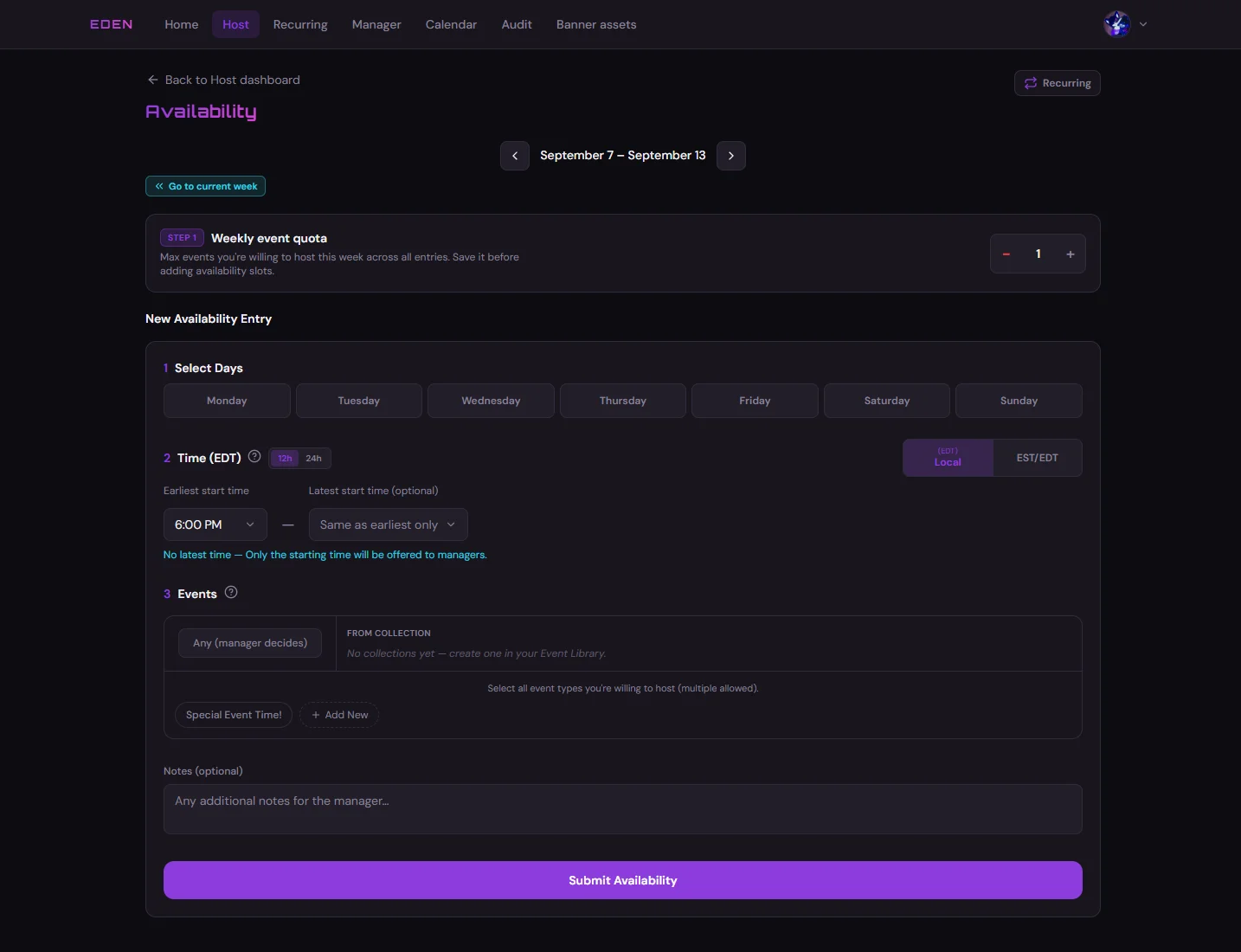
Add a Slot
For each slot after quota, use the toggles below for time fields, then pick event mode and optional notes:
- Event mode and optional notes (see Event Modes below)
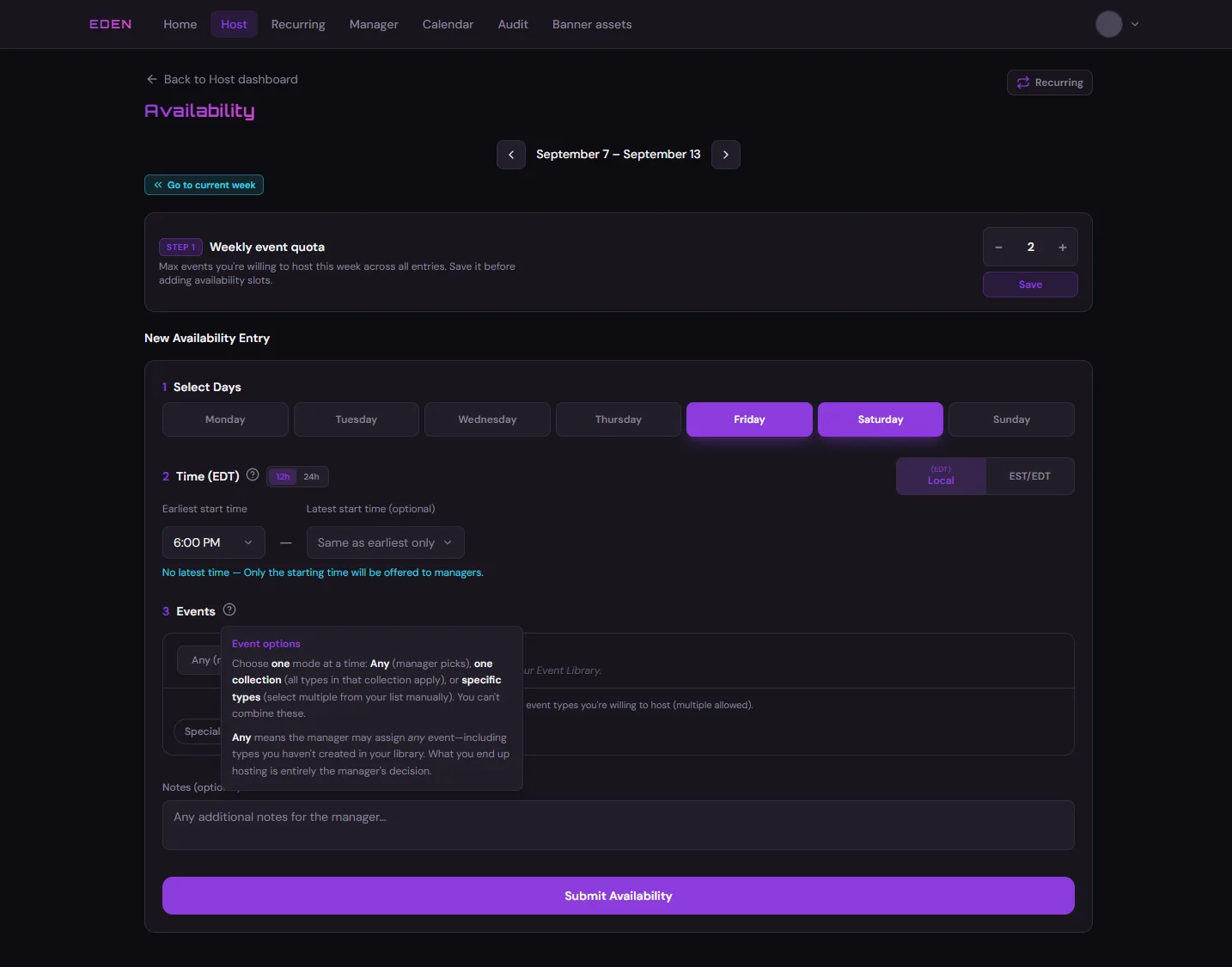
Event Modes
Expand How event modes work on the form for details. In short:
ℹSpecific
You name the event type(s) you will run.
✓Any
Committee chooses the event type from your slot.
⚠Any from
You pick a collection; Committee picks inside it.
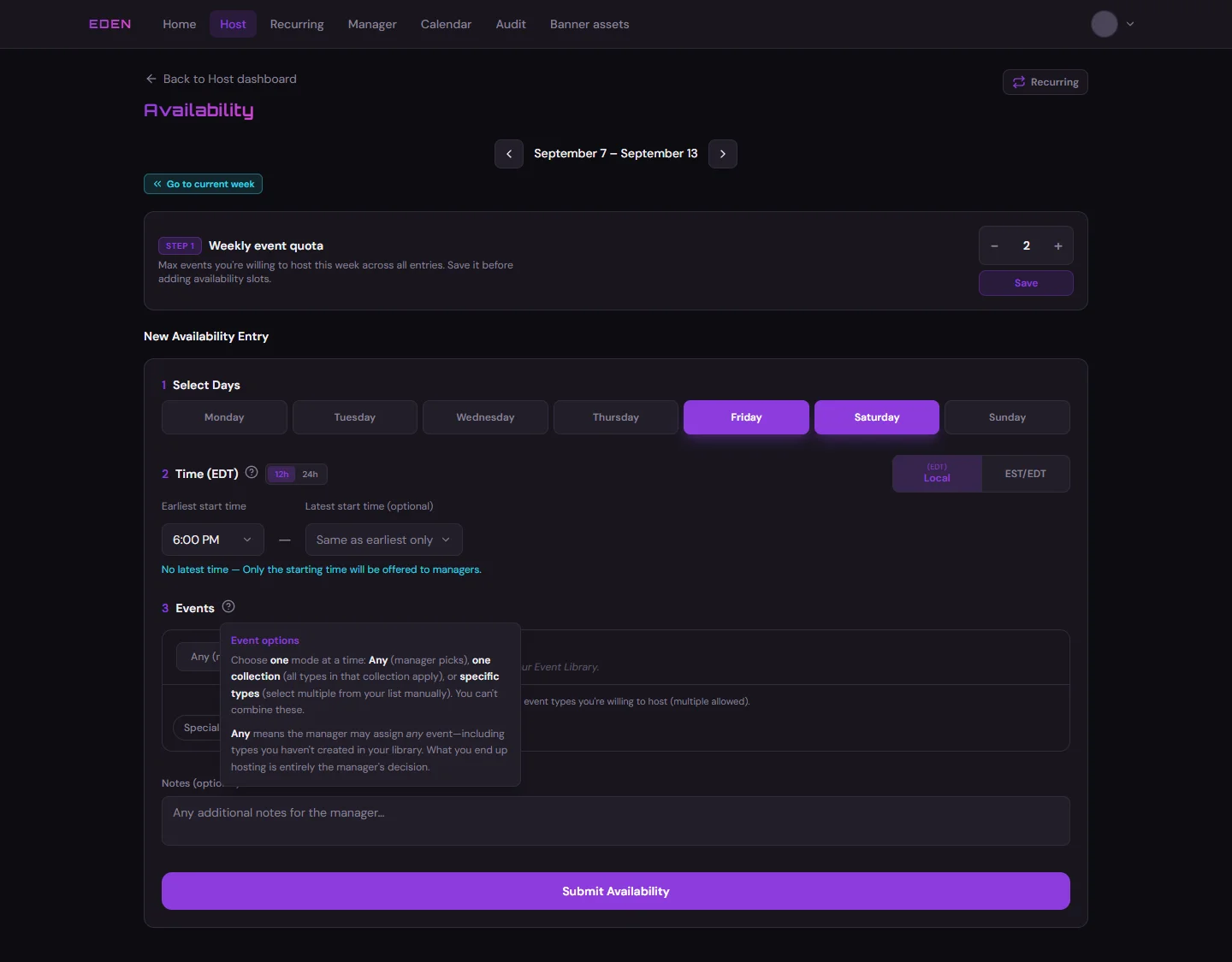
Each of these types are mutually exclusive — you can only select one. Either you specify your event types, or you can select a collection of event types or leave it to Committee to choose.
Manage the types themselves on the Host Dashboard Event Library. Optional SFW banners: Banner Studio.
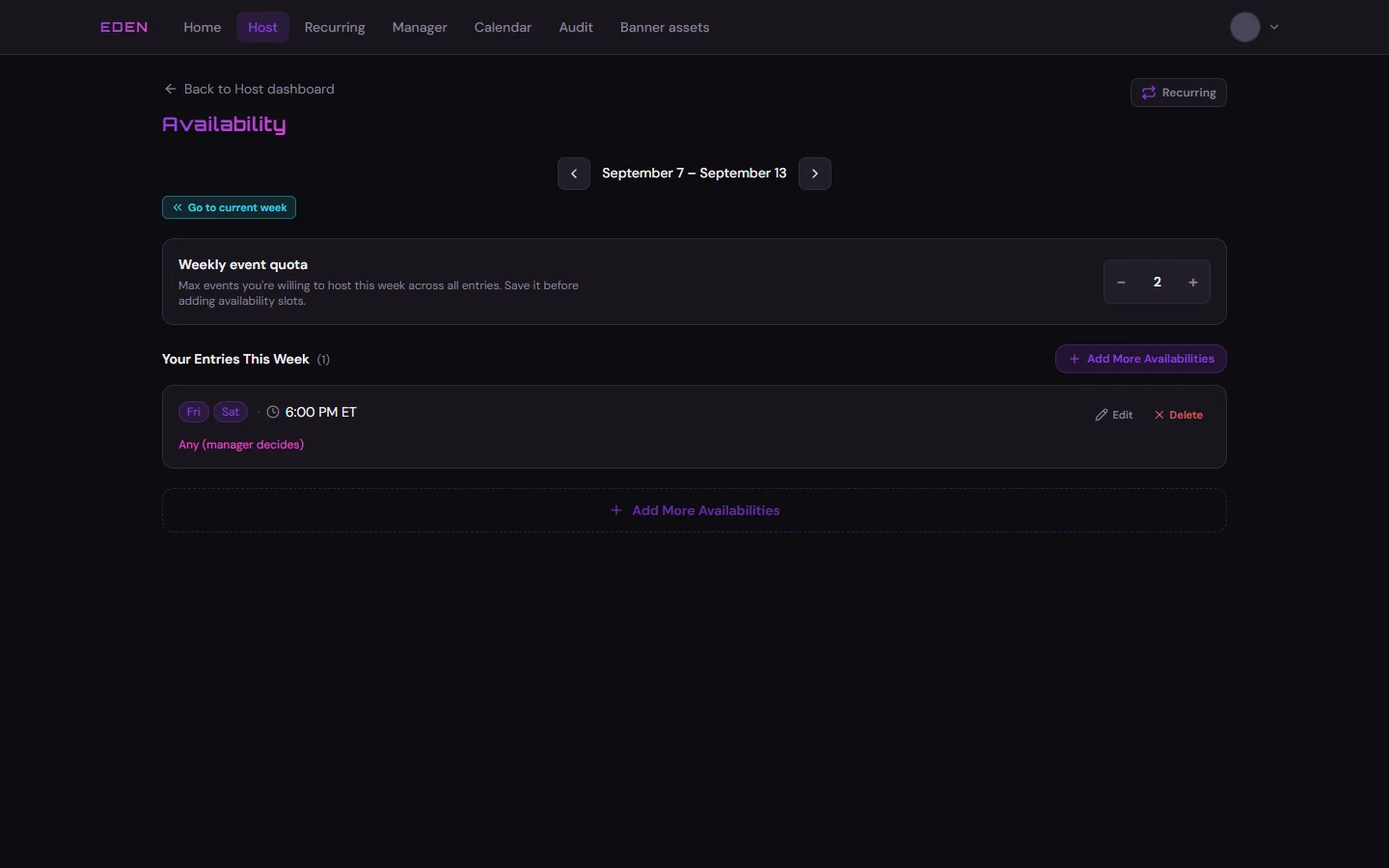
After Submit
Saved rows appear under your week. You can add more slots until lock rules apply (see Introduction — lock rules).
There is no separate “willing to train” toggle. Put training notes in the notes field or coordinate with trainers in Discord.
Next: Recurring Availability