Moderation and Warnings
Warnings cannot be created on the dashboard. Server and event warnings are created only via slash commands in Discord. The dashboard is for viewing and editing existing moderation actions.
Discord slash commands allow only 1 attachment at a time for warnings, watchlist, and host discretion. Use the dashboard to add up to 50 attachments if you need more evidence.
Server Warnings
⚠️Formal Warning
/warn
user (optional), user_idi, reason, ticket (autocomplete), notes, evidence. Can link to ticket.
💬Informal Warning
/warn-informaluser (optional), user_idi, reason, ticket, evidence. Informal server warning.
Both user and user_id are optional. Use user_id when the member is no longer in the server—for example, if a warning was supposed to be given but they left before it could be issued.
Event Warnings
⚠️Formal Event Warning
/warn-event
user (optional), user_idi, reason, ticket, notes, evidence, punishment (24h, 2d, 3d, 5d, 1w, 2w, 3w, 1m, 3m, 6m, 1y, indefinite). Optional punishment creates event ban automatically.
💬Informal Event Warning
/warn-informal-eventuser (optional), user_idi, reason, ticket, evidence. Informal event warning.
Opening a Ticket from a Warning
When you run any warning command without linking a ticket, the confirmation message includes an optional button:
Clicking it will:
🎫Create the ticket
Opens a new ticket right away from the warning confirmation.
👤Pull the member
Automatically adds the warned member to the ticket.
📝Pre-fill the reason
Writes the warning reason into the ticket automatically.
🔗Link automatically
Links the new ticket to the warning so the records stay connected.
This applies to all warning types: /warn, /warn-informal, /warn-event, and /warn-informal-event.
If the member was not currently in the server when the warning was issued (for example, you used user_id), the button will not appear. Discord cannot open a ticket for someone who is not in the server.
Dashboard: Viewing and Editing
In Orion Board, go to Mod Logs → switch to Server or Event → Moderation Actions tab.
The Moderation Action Details modal lets you view and edit:
- Reason
- Staff notes
- Evidence
- Related ticket
- Duration (for event warnings)
Timeouts are also auto-logged when a member receives a server timeout—whether from Hephia V1.2's /timeout command or from the manual timeout option in the Discord client UI.
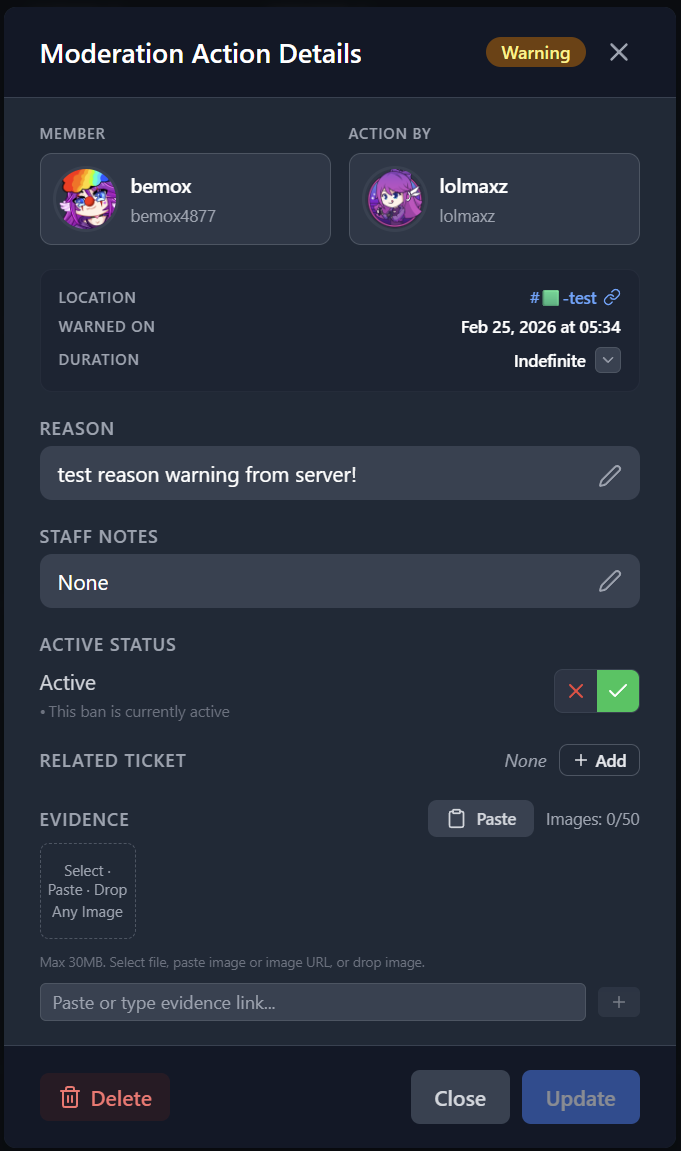
View and edit reason, notes, evidence, and ticket link.
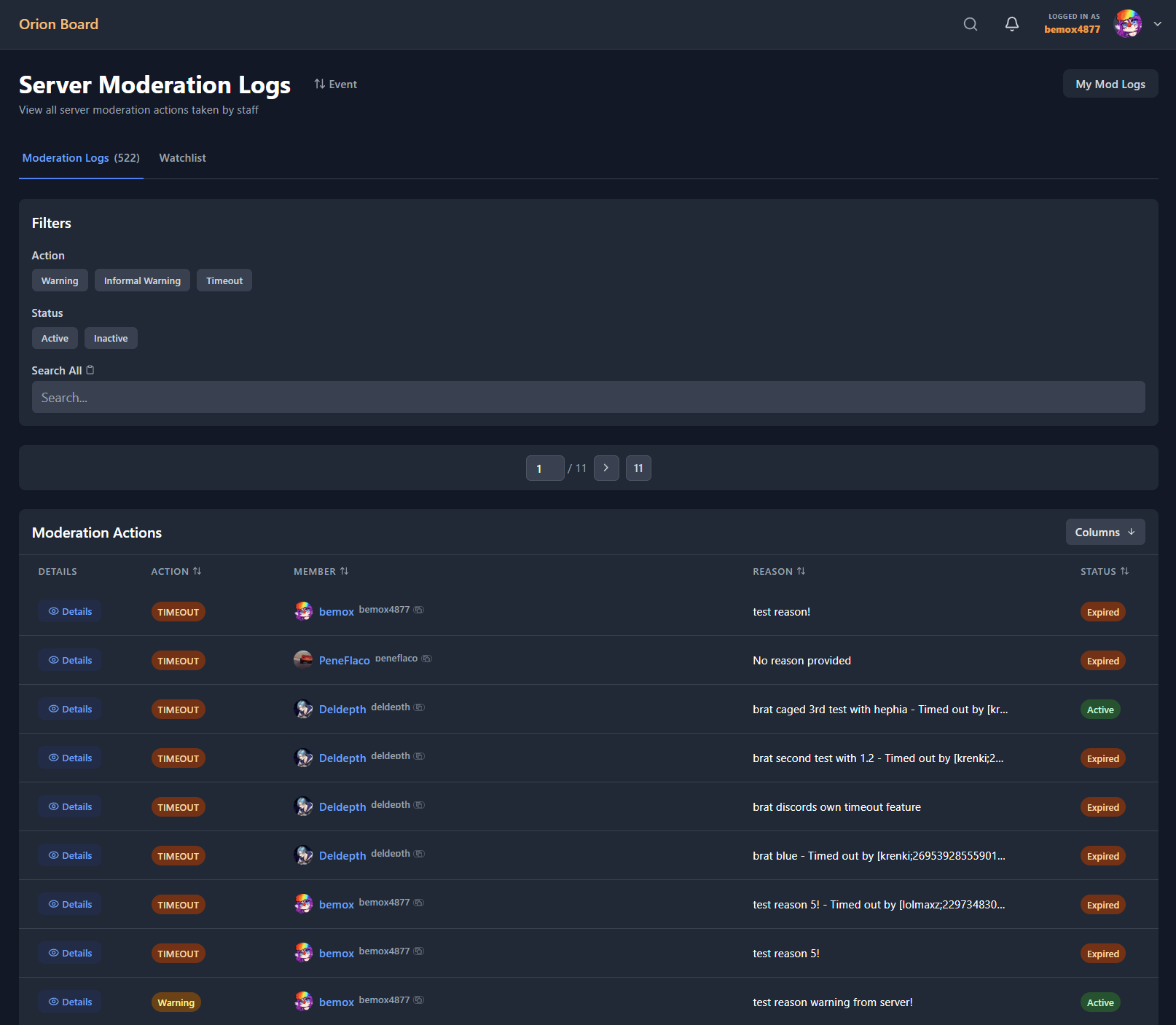
Server moderation actions list.