VRChat Linking & Cross Verification Troubleshooting
This guide helps staff troubleshoot VRChat account linking and cross age verification issues. Understanding these systems is crucial for providing effective member support.
As of July 1, 2026 at 2:00 PM EST, VRChat age cross verification no longer grants server access. The button is labeled VRChat (Temp Disabled). Cross-verifying assigns @Blocked VRC Verified ❌ instead of unlocking the server. Existing VRC Verified members and returning members also receive this role automatically on that date.
Members who cross-verify or have the VRC Verified role must complete Regular ID verification in Eden or Fansly cross verification from the ticket panel to obtain @Eden Verified.
Understanding VRChat Linking
VRChat linking is required for several important features:
- NSFW World Access - Access to adult content in our VRChat worlds
- After Party Participation - Joining exclusive VRChat events
- Group Instance Creation - Creating your own instances in our VRChat group
Cross age verification via VRChat is temporarily disabled for server access. Members can still use VRChat (Temp Disabled) to cross-verify, but this only assigns @Blocked VRC Verified ❌ and does not unlock verified Discord channels.
Linking Rules
- One-to-One Relationship: Each Discord account can only link to ONE VRChat account
- No Sharing: If a VRChat account is linked to a Discord account, no other Discord account can link to it
- Bidirectional: The same rule applies in reverse - one VRChat account per Discord account
- New Discord Accounts: If someone has a new Discord/VRChat account and wants to link to their existing Discord/VRChat counterpart account, pinging @lolmaxz is 100% required
Staff Tools
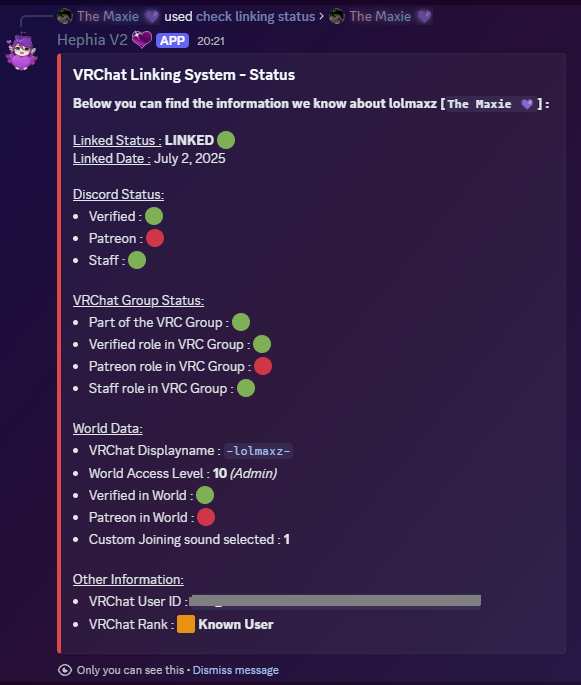
Check Linking Status
All staff members can check a member's linking status:
Desktop:
- Right-click on their profile picture or username
- Go to Apps → Check Linking Status
This shows:
- Whether they're linked
- Which VRChat account they're linked to
- Verification status on Discord
- Patreon status on Discord
- VRChat group status

📱 Mobile Instructions
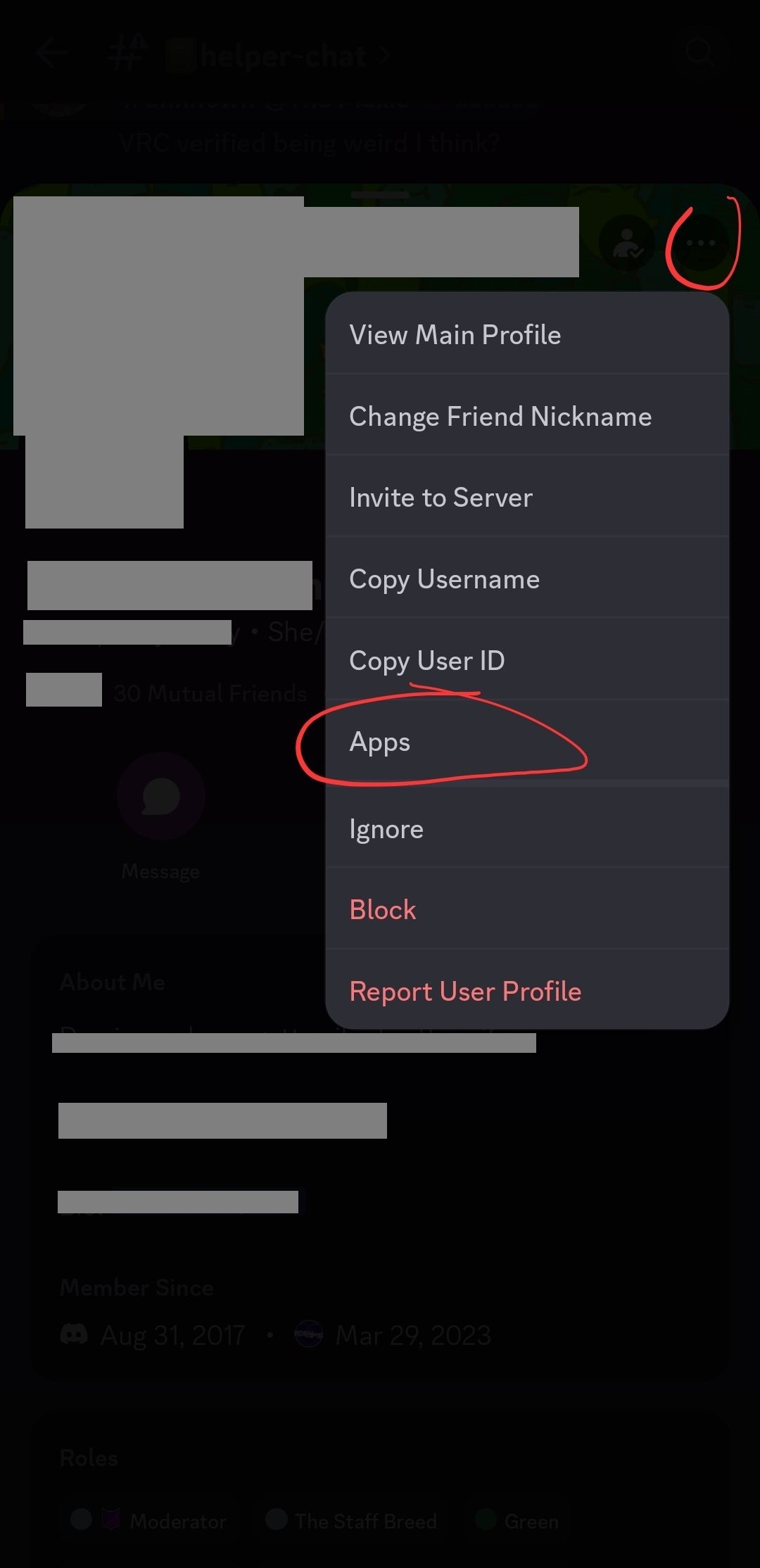
Mobile:
- Click on someone's profile
- Tap the 3 dots in the corner
- Select Apps → Check Linking Status
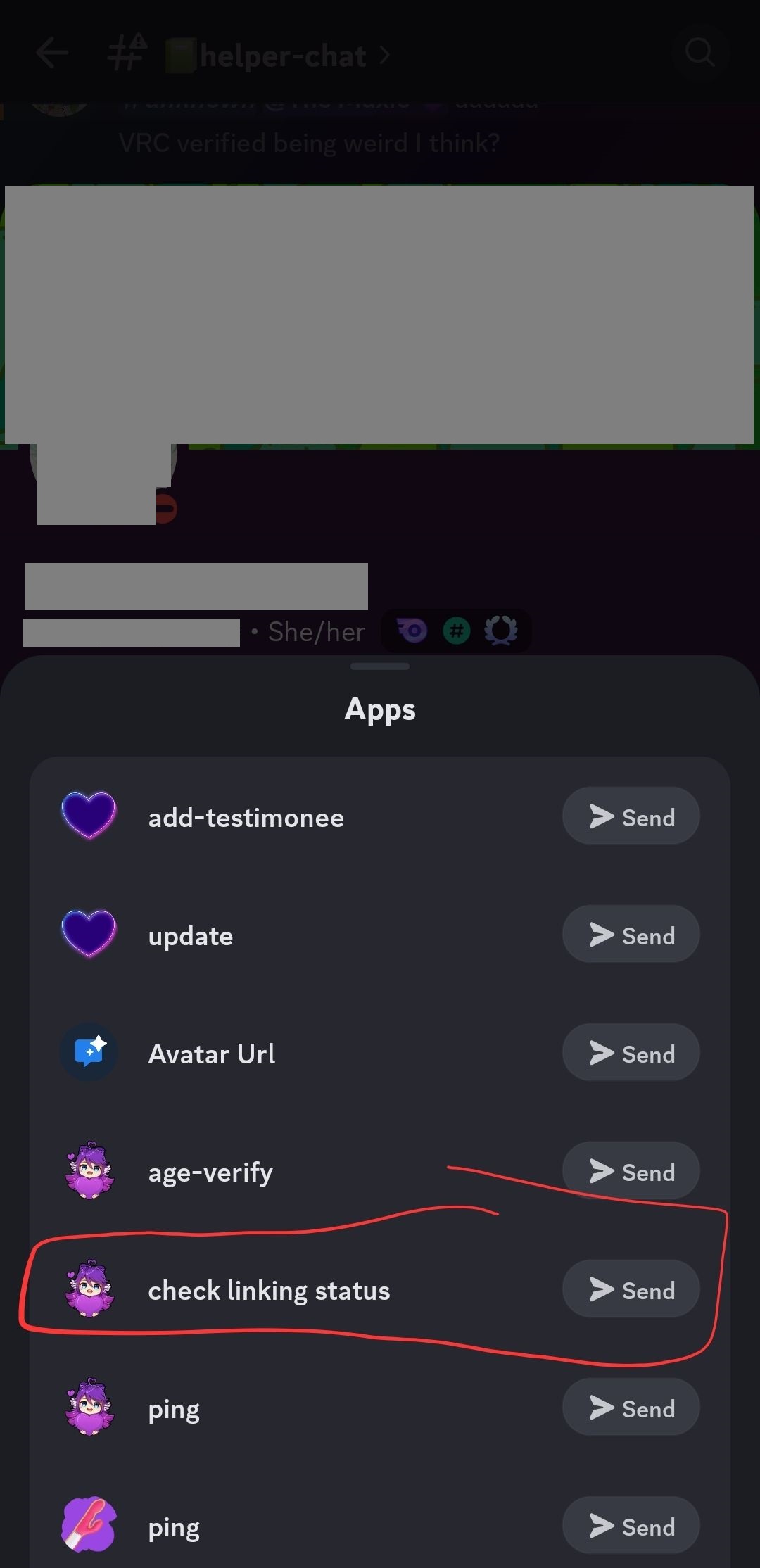
This tool is essential for troubleshooting - always check this first when members report linking issues!
Quick Troubleshooting
Bot not accepting friend requests?
- Our bot only detects requests, doesn't accept them
- Common causes: request sent too late, already linked, or old pending request exists
- Fix: Cancel any pending requests and wait for "Send Friend Request" button to reappear
Can't join after parties?
- Member is linked but missing VRChat group permissions
- Go to 🪄events-attendees
- Click
Member cross-verified but doesn't have server access?
- Expected behavior since July 1, 2026 — VRChat cross verification no longer grants server access
- Check 🔗-vrchat-age-logs to confirm they cross-verified
- They should have @Blocked VRC Verified ❌
- Direct them to open a verification ticket in 🎫open-a-ticket for Regular ID verification, or use Verify Using Fansly from the ticket panel
- Do not manually assign @VRC Verified — this role no longer grants access
Member has VRC Verified role but no access?
- Existing VRC Verified members received @Blocked VRC Verified ❌ automatically on July 1, 2026
- They need to complete Regular ID verification or Fansly cross verification to obtain @Eden Verified
Patreon supporter not showing in VRChat World?
- User is correctly linked as Patreon but name doesn't appear in VRChat World
- Ask: Did they recently change their VRChat username?
- If yes: Have them click in 📱|linking-with-vrchat
- Wait: ~5 minutes, then rejoin the world
- Still not working? Ping @lolmaxz
Example: VRChat Linking Troubleshooting
Here's an example of how to help a member troubleshoot linking issues:


Escalation Process
If none of the above solutions resolve the issue:
- Document the problem with specific details
- Ping @lolmaxz for technical assistance
- Include:
- Member's Discord username
- What they're trying to do
- What error messages they're seeing
- Results from "Check Linking Status"
Additional Resources
- VRChat Linking Channel: 📱|linking-with-vrchat
- Events Attendees: 🪄events-attendees
- VRChat Age Logs: 🔗-vrchat-age-logs
- Ticket Panel: 🎫open-a-ticket
For more detailed information about the verification process, see the Verification Requirements page.