Dashboard Overview
The Orion Board dashboard provides a central place to manage tickets, moderation actions, verifications, watchlist, host discretion, and bans. Log in with your Discord account.
Navigation
The sidebar gives you access to:
- Dashboard — Overview, stats, ticket columns (Verification, Server, Event)
- Server Tickets — Filter by type (Staff-Talk, Unsolicited DM, Friend Request, Scammer Report, etc.), status, search
- Event Tickets — Event report tickets (e.g. Event-Talk — members report event-related issues; only senior event staff and management can view)
- Verifications — Verification tickets with Verify button on the detail page
- Mod Logs — Switch between Server (Moderation Actions, Watchlist) and Event (Event Mod Logs, Host Discretion, Watchlist)
- Kicks and Bans — Tabs for Kicks (server only) and Bans (server + event)
- Settings — Your preferences (theme, date/time format, notifications)
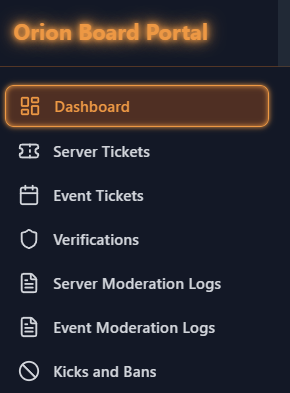
Left sidebar navigation on desktop.
Mobile: On mobile, double-tap items at the bottom to switch between Server and Event views when you have permission for both (a small arrow icon appears):
- Tickets — Switch between Server and Event tickets
- Mod Logs (Server Mod / Event Mod) — Switch between server and event moderation
- Watchlist — Switch between server and event watchlist
The mobile experience is smooth and easy to navigate.
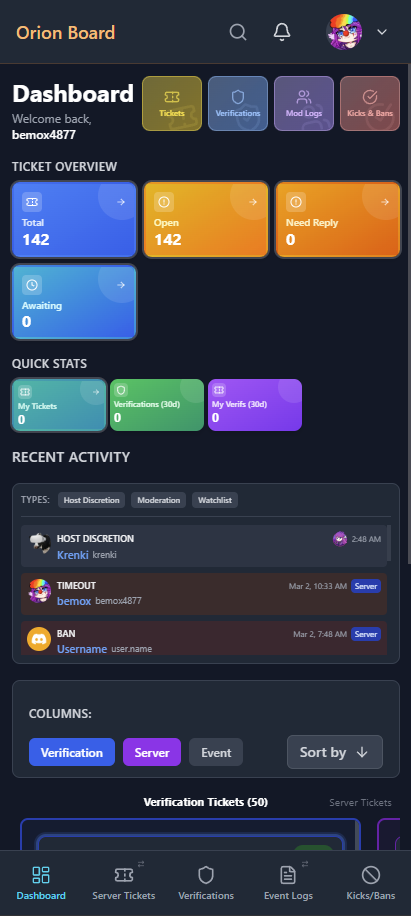
Mobile bottom navigation with Tickets, Mod Logs, and Watchlist. Double-tap to switch between Server and Event views when permitted.
Ticket Closure
🔒/close
/closeModerator only can use this.
Staff closes the ticket immediately. Must be used in the ticket thread. Moderator+ only (not Cutie Helper).
✋/close-request
/close-requestStaff only can use this.
Staff requests closure from the ticket opener. The opener gets Close/Deny buttons. Use when staff feel the user is done—lets the member close when they're ready. Only the ticket opener can click Close or Deny.
Ticket Type Change
Staff with the correct permissions can change a ticket's type in the dashboard. You can only change a ticket to a type you have access to view.
Notifications
The notification bell in the top navbar shows:
- Event bans — When an event ban is happening or expiring. Targets event staff only.
- Custom notifications — Sent by high staff or admins.
In Settings, you can configure:
- Theme — Light or dark mode
- Date format — Absolute or relative
- Time format — 12h or 24h
- Notifications — Turn on or off. Turning off disables all notifications completely.
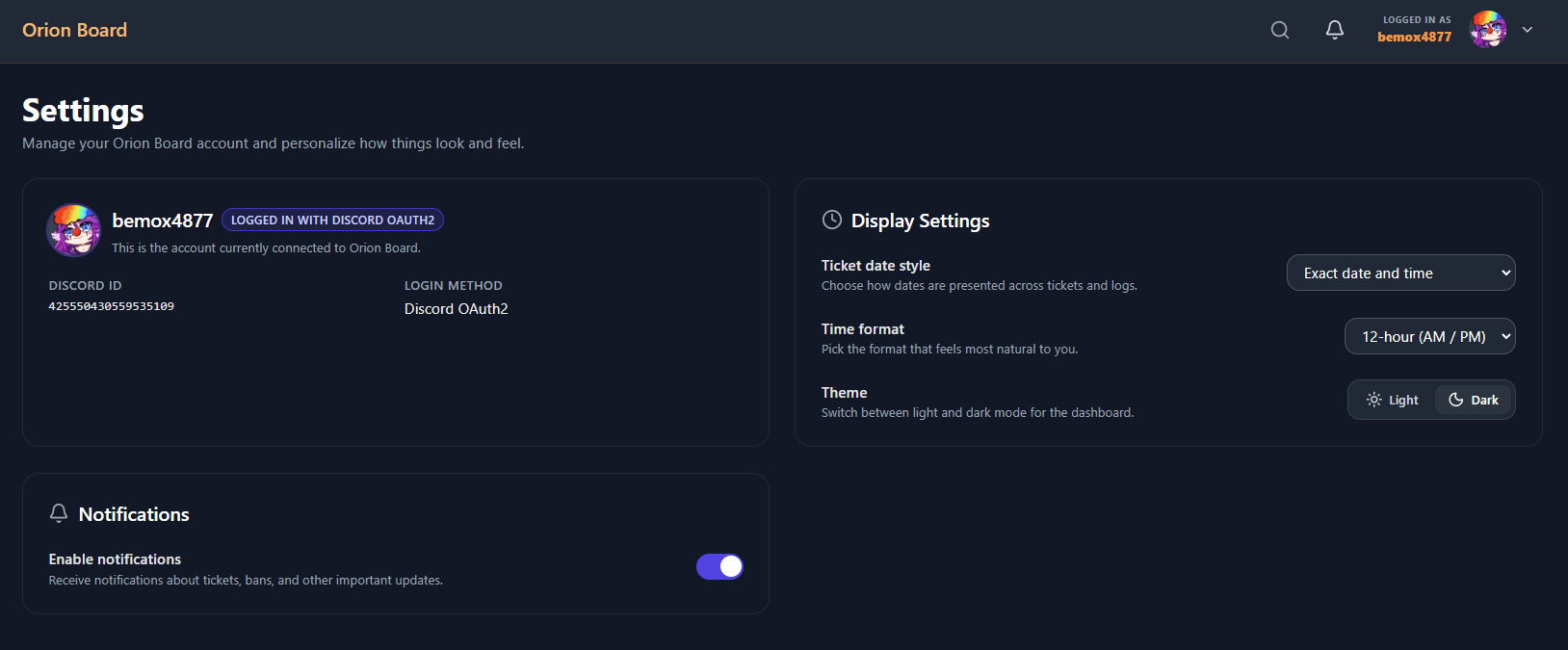
Theme, date/time format, and notification settings.
Server Help Options (Ticket Panel)
When members open a ticket from the open-a-ticket channel, they choose from a dropdown. Here's what each option means:
| Option | Description |
|---|---|
| Unsolicited DM | Report someone who DMed them without consent |
| Friend Request | Report an unsolicited friend request |
| Scammer Report | Report a scammer |
| Server Problem | Technical or server-related issue |
| Inquiries | General questions |
| Staff Problem | Report an issue with a staff member or event host — directs to HR. Does not create a ticket. |
| Other | Anything else. Staff use this option when opening Staff-Talk tickets. |
Event Ticket Options
When members or staff open a ticket under the Event category, they choose from these types:
| Type | Description | Who can view |
|---|---|---|
| Event-Talk | Members report event-related issues (rule breaks, concerns, feedback). | Senior event staff and event management |
| Event Incident | Staff-created tickets for incident follow-up and documentation. | Senior event staff and event management |
| Other (Event) | Other event-related matters. | Senior event staff and event management |