Enabling Developer Mode of Discord
This setting is required to be active in order to get user's Discord User ID.
How to Enable Developer Mode
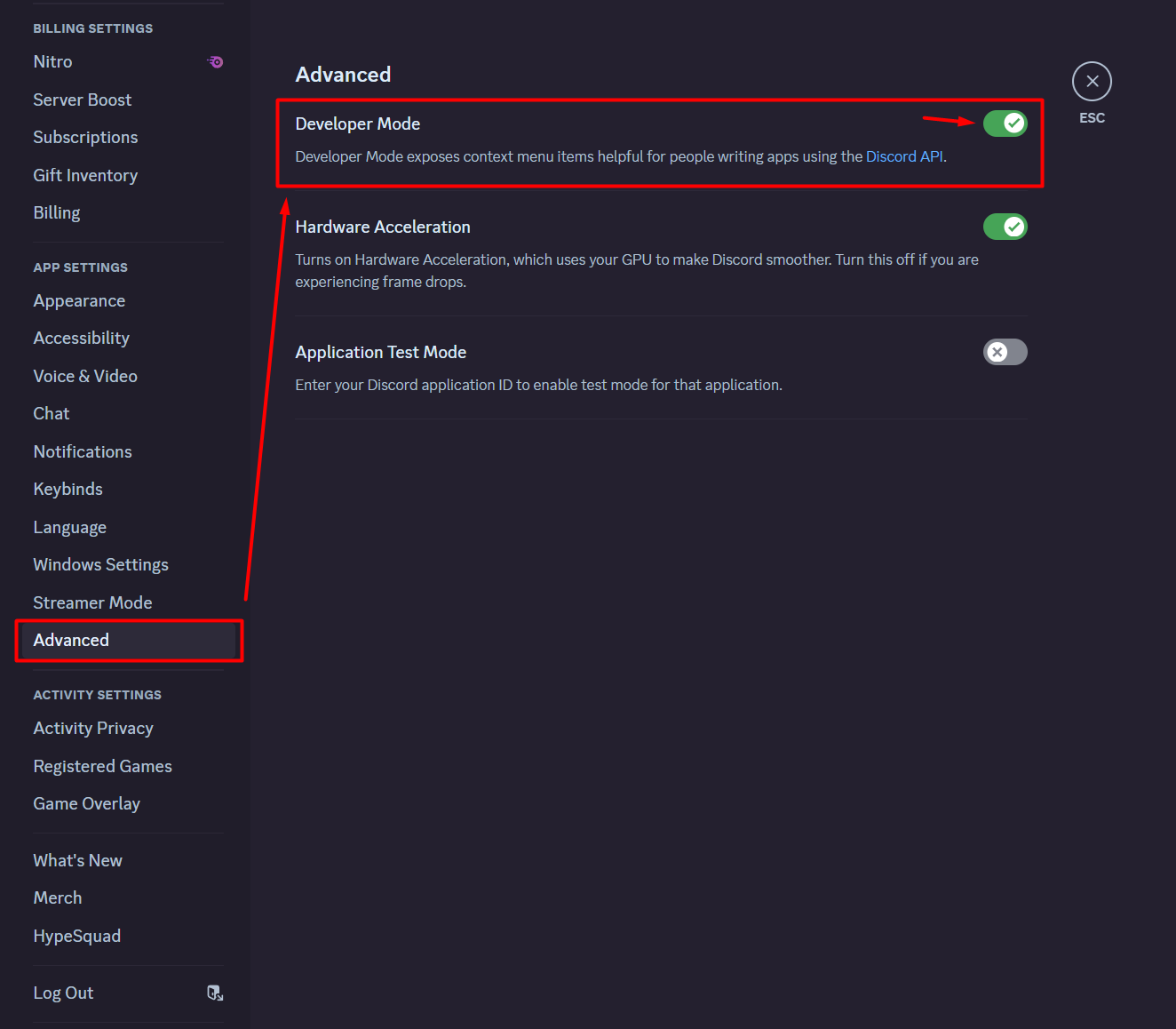
On Desktop 🖥️
- Click on the Settings icon next to your username.
- Navigate to Advanced in the left sidebar.
- Toggle Developer Mode on.
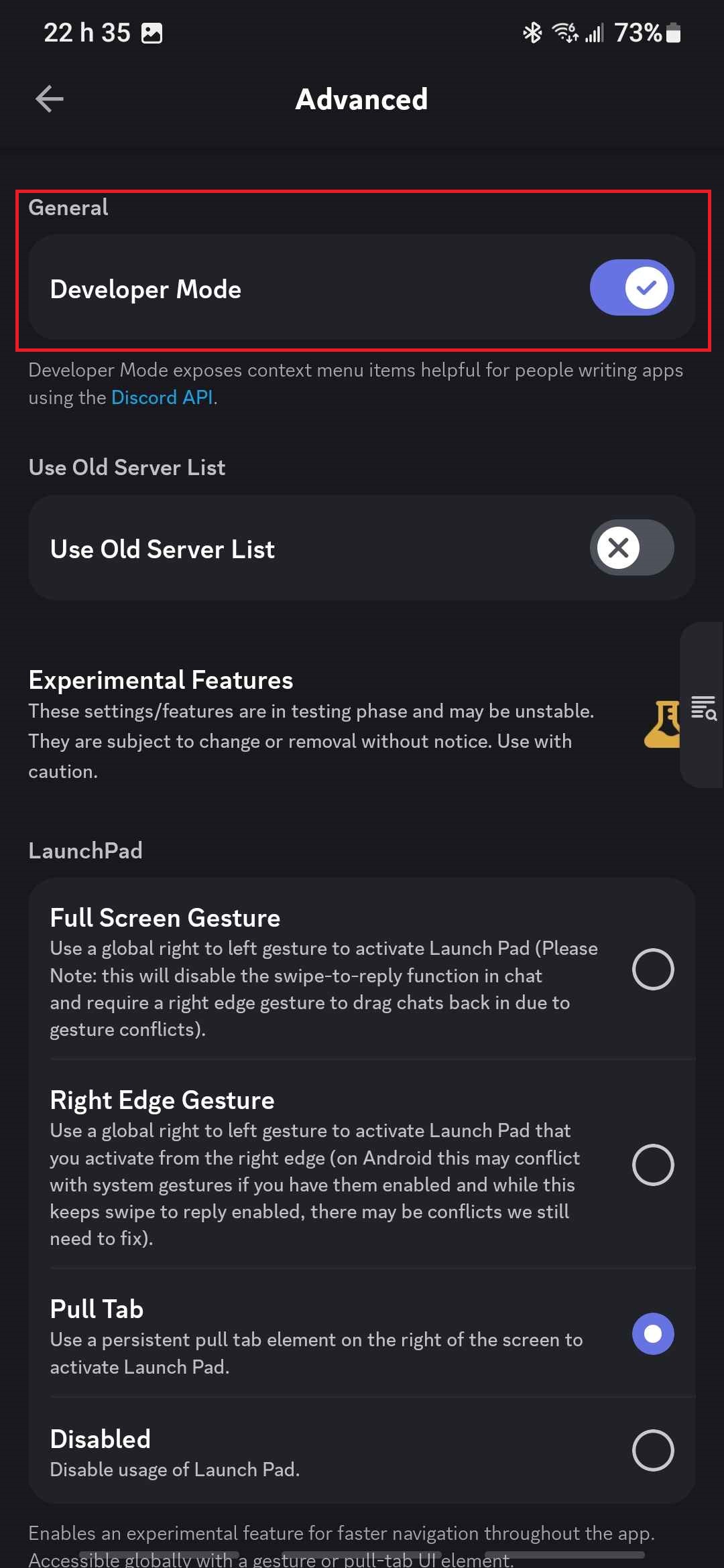
On Android 📱
- Tap on your profile picture to access User Profile.
- Tap top right corner on to access your App Settings.
- Scroll down and tap on Advanced.
- Toggle Developer Mode on.
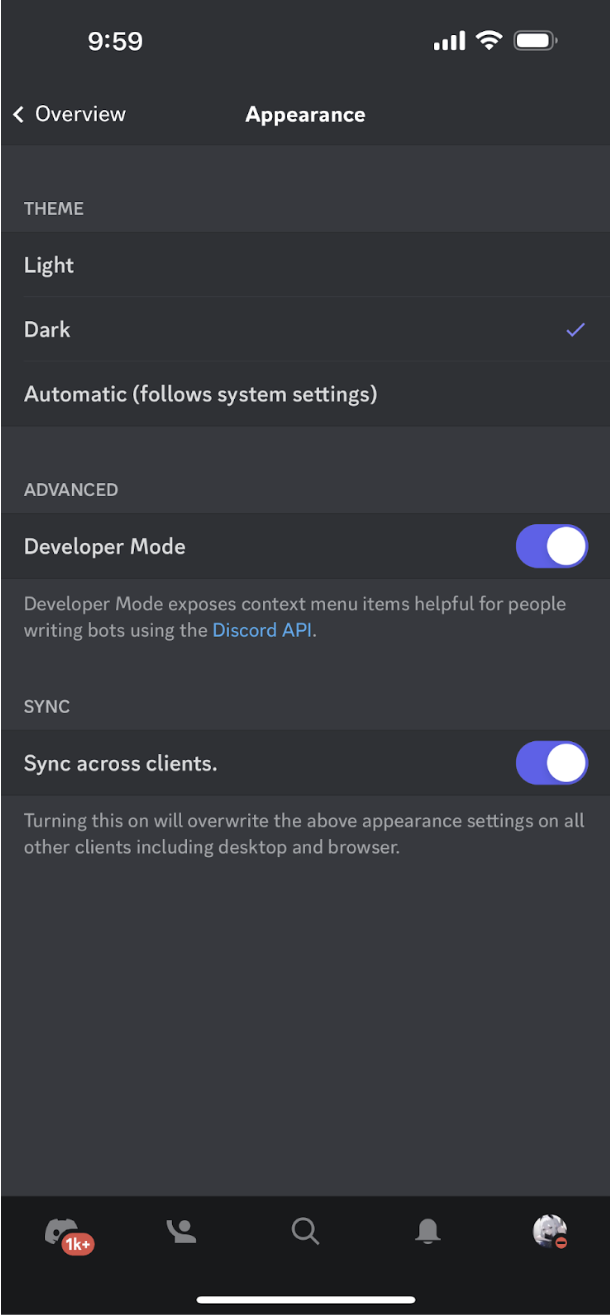
On iOS 🍏
- Tap on your profile picture to access User Settings.
- Tap on Appearance.
- Scroll down and toggle Developer Mode on.
note
Once enabled, you can right-click (or tap and hold on mobile) on a user's profile or username to copy their User ID.
How to Get a Discord User ID from a User
After enabling Developer Mode:
- Right-click on the user's username or avatar.
- Select Copy ID.
Example:
- Discord Username:
Cdkinetic - Discord User ID:
184687352394809345
warning
Ensure you are copying the correct ID, especially when dealing with reports or moderation actions.